PDF Editor for Chromebook and Linux: No Install Needed
By Bishal Neupane · · 5 min read
Search for a PDF editor and the first results are Windows and Mac programs. On a Chromebook you can't run them at all, and on Linux you are left to hunt for a package that does what you need. A PDF tool that runs in the browser sidesteps the problem: if the browser opens the page, the tool works. This guide covers what PDFCraftly can do on ChromeOS and Linux, where your files go, and where it falls short.
Why a browser tool suits Chromebook and Linux
A Chromebook runs ChromeOS, so Windows and Mac installers are no use. Linux desktops can run native software, but the PDF tools are a patchwork, and the polished commercial editors are mostly built for Windows and Mac. A website doesn't care which operating system is underneath.
PDFCraftly does the work inside the page. The tools are written in JavaScript and WebAssembly and run in Web Workers, which are standard browser features. The site needs both, which current versions of Chrome and Firefox provide. We haven't verified every Linux distribution or browser, so if you use something unusual, open a tool and try one small file first.
Because the processing happens on your device, your PDF isn't uploaded. Are online PDF tools safe? shows how to check that yourself in the browser's Network tab.
What you can do
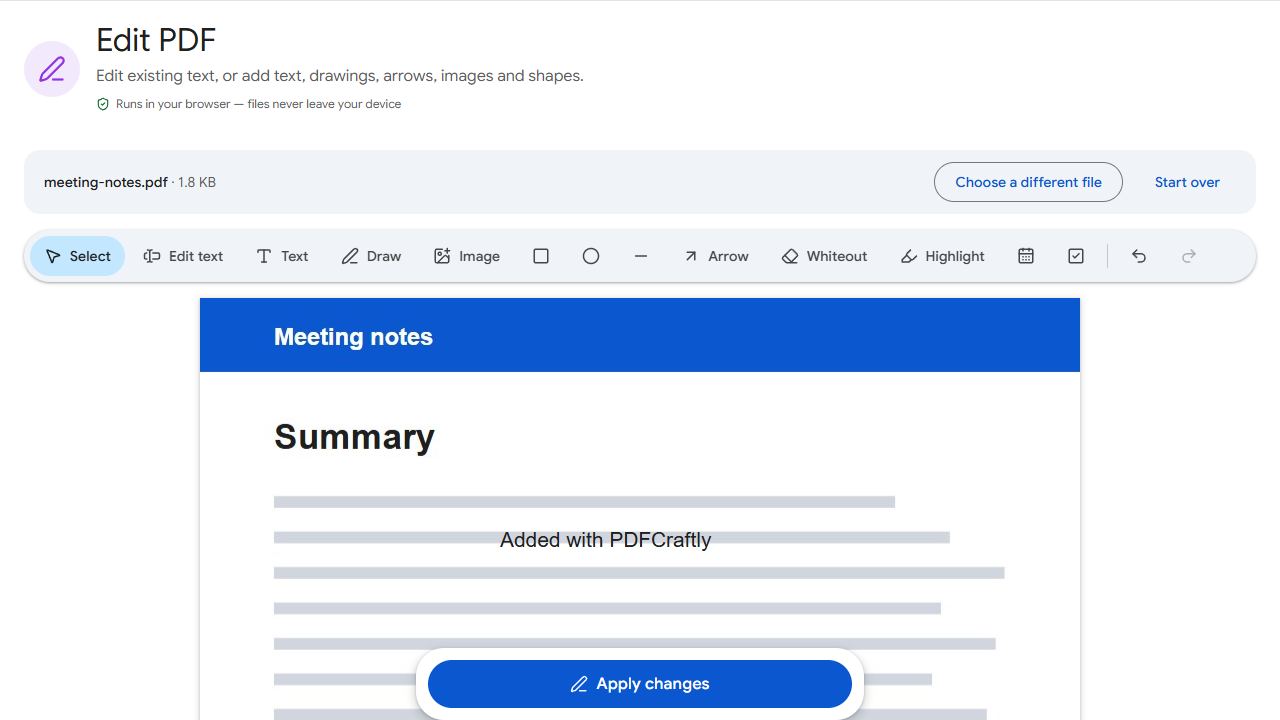
- Edit: Edit PDF changes existing text and adds text, drawings, arrows, images and shapes.
- Merge and split: Merge PDF joins files in the order you choose, and Split PDF cuts them by page range.
- Reorder pages: Organize PDF reorders, rotates, deletes and inserts blank pages visually.
- Sign and fill forms: Sign PDF and Fill PDF Forms.
- Scans: OCR PDF turns scanned pages into searchable text, and Scan to PDF builds a PDF from camera photos.
- Shrink and protect: Compress PDF, Protect PDF and Unlock PDF.
- Convert images: JPG to PDF and PDF to JPG.
These are examples, not the full list. The tools page has every tool, and none of them needs an account.
Picking a file on a Chromebook
- Open the tool in Chrome, for example Merge PDF.
- Click the upload area. ChromeOS opens its file picker, which is the Files app.
- Choose the PDF from Downloads, My files or another location in the list.
- You can also drag a PDF from the Files app onto the page.
The ChromeOS picker normally lists connected storage such as Google Drive next to your local folders. The exact layout depends on your ChromeOS version and your account settings, so look for it in the left-hand panel. If a Drive file doesn't appear or won't open, download it to Downloads first and pick it from there.
Where the result is saved
The finished file is downloaded by the browser, so it follows your browser's download setting. On ChromeOS that is usually the Downloads folder in the Files app. On Linux it is usually the Downloads folder in your home directory. Chrome and Firefox both let you choose a different folder, or ask every time, in their settings.
Output names are based on the original with a short suffix, such as _protected or page ranges, and your original file is never changed. Search for the suffix if you can't spot the new file.
To save a file straight to Google Drive from a Chromebook, move it from Downloads in the Files app afterwards. The tools themselves have no cloud storage integration.
Working offline
Be careful with this one. Once a tool's page has loaded, most of the processing needs no internet connection, because it all runs on your device. Opening a tool and then losing Wi-Fi should not stop a merge or a split. The exception is OCR, which downloads its language data from a CDN the first time you use a language.
PDFCraftly is not an offline app. The site publishes a web app manifest, but it has no service worker, so we don't promise that a tool will open when you have no connection at all. If you need to work somewhere with no signal, open the tools you need while you are still online, and keep those tabs open. Run OCR once beforehand if you will need it.
Limits and what it can't do
Each file can be up to 200 MB per tool. Very large files also depend on your device's memory, and Chromebooks with little RAM will slow down earlier than a desktop. Closing other tabs helps.
- No Word or Excel conversion. PDFCraftly doesn't turn PDFs into Word or Excel files, or Office files into PDFs.
- No desktop app. There is nothing to install, which is the point, but also nothing to launch from your app list.
- No cloud storage integration. You pick local files and save downloads.
- No account features. There is no sync, history or shared workspace.
If you rely on any of those, a desktop suite or a server-based service is the better fit. For editing, merging, signing, scanning and shrinking, the browser is enough. If you are comparing services, see a free Smallpdf alternative or a Sejda alternative with no per-task limits.
Common problems and fixes
- The tool page loads but the file picker doesn't show my PDF.
- Browse to the folder that holds it, usually Downloads. Files that only exist in Google Drive or a cloud app may need downloading to your Chromebook first.
- I can't find the finished file.
- Open your browser's download list (Ctrl+J in Chrome and Firefox). The file is in your download folder, which is usually Downloads, and its name is based on the original.
- A big PDF makes the tab slow or crash.
- Close other tabs and apps to free memory, then try again. Each file can be up to 200 MB, but a device with little RAM may struggle well below that.
- OCR doesn't start when I'm offline.
- OCR downloads its language data the first time you use a language. Run it once while connected, and later runs in that language don't need to download it again.
Frequently asked questions
It runs in the browser, so any Chromebook with a current version of Chrome can open the tools. There is nothing to install and no Linux setup is needed.
The site needs WebAssembly and Web Workers, which current Chrome and Firefox support. We haven't verified every distribution or browser.
Partly. After a tool's page has loaded, most processing doesn't need the internet. But the site isn't an offline app and has no service worker, so don't count on a tool opening with no connection.
No. The file is processed in your browser on your own device. The only outside request is OCR downloading language data from a CDN.