e-Aadhaar PDF Password: Format, Examples and How to Remove It
By Bishal Neupane · · 3 min read
The e-Aadhaar you download from UIDAI is a password-protected PDF. The password isn't sent to you: it's built from details printed on the card. Here's the format, what to do when it says "incorrect password", and how to save a copy that opens without it.
The e-Aadhaar password format
UIDAI's rule is simple: the password is the first four letters of your name in capital letters, followed by your year of birth in four digits. UIDAI's own example: for the name SURESH KUMAR born in 1990, the password is SURE1990.
- Use your name exactly as it is printed on your Aadhaar, not as it appears on your PAN or bank account.
- Type the letters in capitals. The password is case-sensitive, so sure1990 won't work.
- Use only the year of birth, not the full date.
- If your name is shorter than four letters, try the whole name followed by the year.
- If your name starts with an initial, such as P. KUMAR, try it with the full stop first and then without it.
UIDAI publishes the main rule and the SURESH KUMAR example; the tips for short names and initials are what to try when the first guess fails, not an official rule.
Opening the PDF
Open the downloaded file in your phone's or computer's PDF viewer, or in a browser such as Chrome. When it asks for a password, type the code from the rule above. The file itself never changes; you'll need the password each time you open it.
Save a copy without the password
Typing the password every time gets tedious, and some upload portals reject password-protected PDFs. You can save a copy that opens normally:
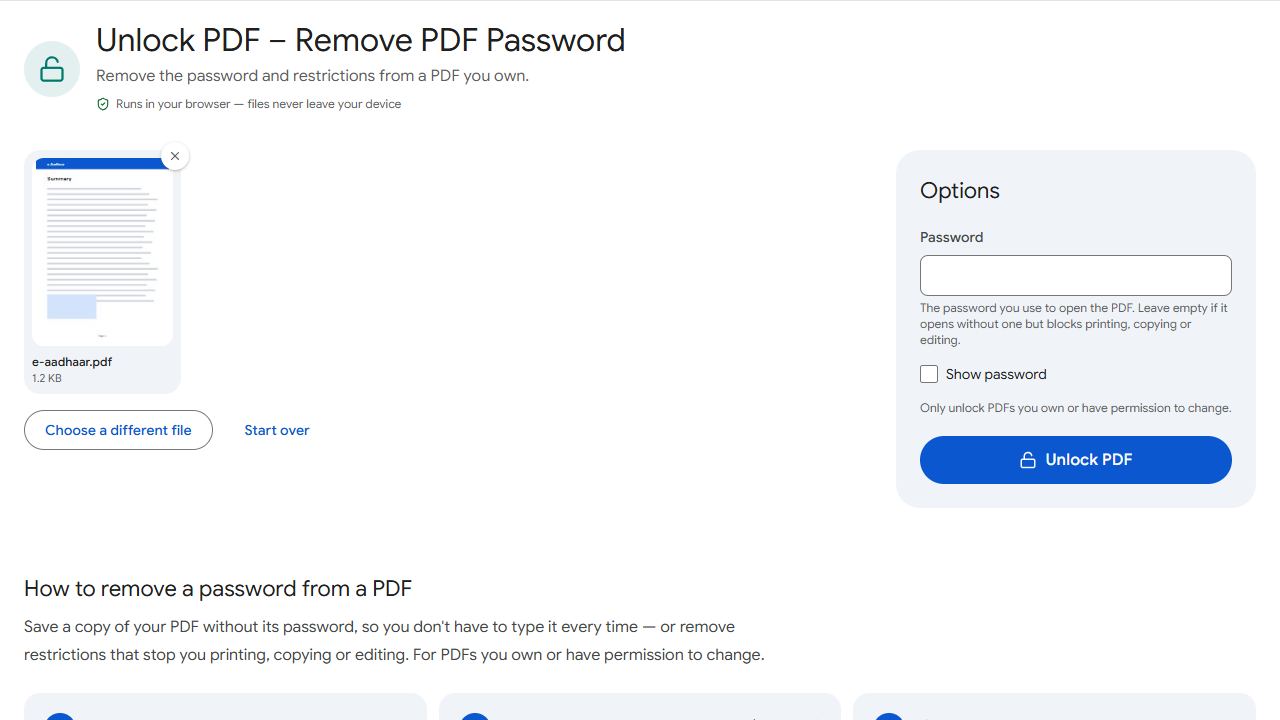
- Open Unlock PDF and add your e-Aadhaar PDF.
- Type the password (for example SURE1990).
- Click Unlock PDF and download the copy without a password.
The password is removed in your browser, so your Aadhaar never leaves your device. That matters for a document carrying your Aadhaar number, address and photo.
Keep the original download too. The e-Aadhaar is digitally signed by UIDAI, and the signature check is meant for the original file. Use the unlocked copy for printing and uploads, and the original whenever someone verifies the signature.
Sharing your Aadhaar safely
An unlocked copy opens for anyone who gets the file, so be careful where you send it. When a service doesn't need your full number, download the masked Aadhaar from UIDAI instead: it hides the first eight digits.
If you must email the unlocked copy, you can add a password of your own with Protect PDF and share it separately. To send Aadhaar with other KYC papers as one file, combine them with Merge PDF.
Common problems and fixes
- It keeps saying the password is incorrect.
- Check four things: capital letters, the name exactly as printed on your Aadhaar, only the year of birth, and no spaces. If you updated your name recently, download a fresh e-Aadhaar and use the new name.
- My name has initials, like S. KUMAR.
- Take the first four characters as printed and try with the full stop first, then without it. Spaces are not part of the password.
- A portal rejects my e-Aadhaar as password-protected.
- Upload a copy without the password, made with Unlock PDF. If it's also over the portal's size limit, shrink it with Compress PDF.
- The PDF won't open in an old viewer app.
- Some older viewers can't open modern encrypted PDFs. Open it in a current browser such as Chrome, or in an up-to-date PDF reader, then type the password.
Frequently asked questions
The first four letters of your name in capitals, followed by your year of birth. For SURESH KUMAR born in 1990, it's SURE1990.
No, and you don't need to: the password comes from your own name and year of birth. Once you type it, Unlock PDF saves a copy that opens without it.
It shows exactly the same pages, so it works for printing and most uploads. Keep the original download for anyone who needs to verify UIDAI's digital signature.
No. Unlock PDF runs in your browser, so the file and the password stay on your device.