How to Password Protect a PDF for Free
By Bishal Neupane · · 2 min read
Bank statements, contracts, payslips and ID scans often travel by email or chat, where they can be forwarded or sit in an inbox for years. A password means only the people you give it to can open the file.
Two kinds of PDF password
- Open password (user password): needed to open and read the file. This is what actually keeps people out.
- Permissions password (owner password): controls whether the file can be printed, copied or edited once it's open. Most apps respect it, but some ignore it, so don't rely on it alone.
Protect a PDF step by step
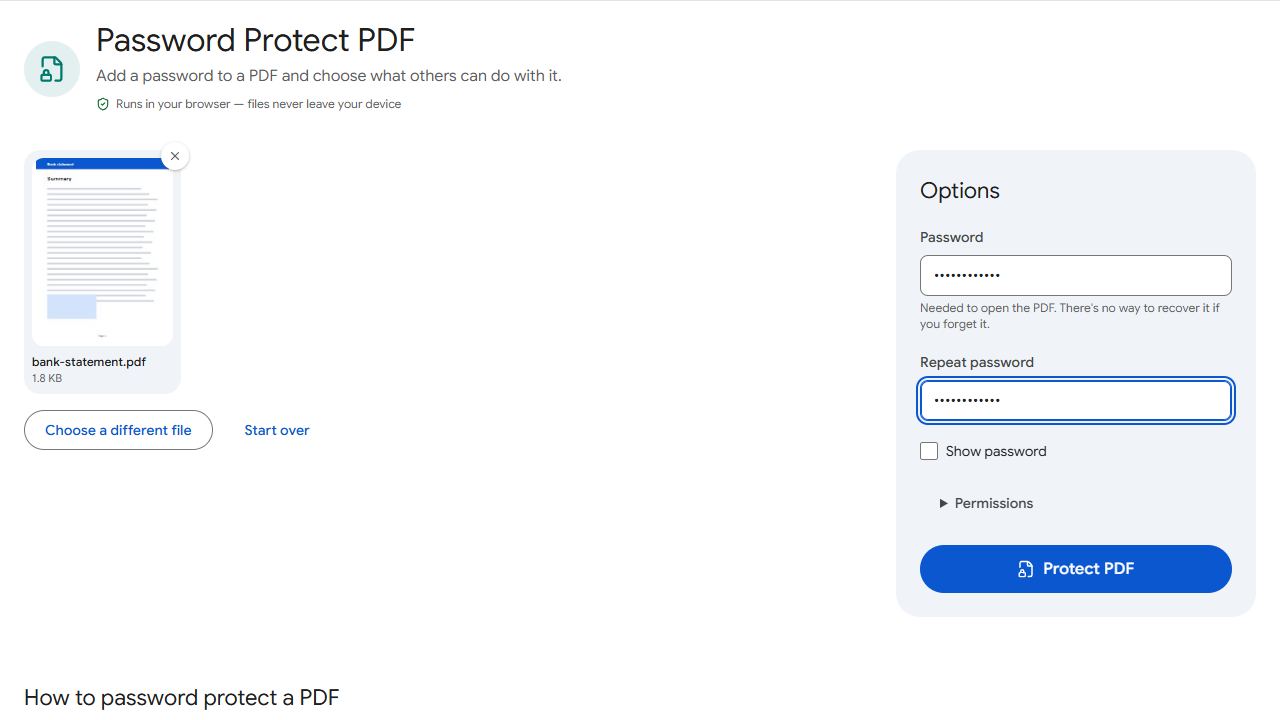
- Open Protect PDF and add the file.
- Type the password twice.
- Optionally, open Permissions to block printing, copying or editing, and set an owner password if you want to change those settings later.
- Click Protect PDF and download the encrypted copy.
The file is encrypted with 256-bit AES, the strongest encryption PDFs support, and opens in Adobe Acrobat, web browsers and the built-in PDF viewers on phones and computers. Encryption happens in your browser, so neither the file nor the password leaves your device.
Choosing a good password
- Use at least 10 characters. A short phrase of unrelated words is easy to type and hard to guess.
- Avoid dates of birth, phone numbers and names, which are the first things people try.
- Keep it somewhere safe. A forgotten password can't be recovered, so keep an unprotected original if you might need it.
Send the password separately
Send the password by a different route than the file: email the PDF, for example, and send the password by SMS or tell the person on a call. If both travel in the same email, anyone who gets that email gets both.
For documents that could be misused, such as ID copies, a watermark stating the purpose adds a second layer of protection.
Common problems and fixes
- The recipient says the password doesn't work.
- Passwords are case-sensitive, and phones sometimes capitalise the first letter automatically. Check for extra spaces too.
- It says the PDF is already protected.
- Remove the existing password with Unlock PDF first, then add a new one.
- An old PDF reader can't open the file.
- 256-bit AES needs Adobe Reader X or later. Every current browser and phone opens it, so ask the recipient to update their reader.
- Printing still works even though I blocked it.
- Some PDF apps ignore permission settings. Only the open password is enforced everywhere.
Frequently asked questions
Not with a strong password. AES-256 can't be broken by guessing a good password in any practical time, which is also why a lost password can't be recovered.
No. The PDF is encrypted in your browser; the file and password never leave your device.
Yes. Open Unlock PDF, enter the password and save an unprotected copy.
No. The pages look exactly the same; the file is only encrypted.