How to Add Bookmarks to a PDF (Create a Clickable Outline)
By Bishal Neupane · · 2 min read
Bookmarks — also called the outline — are the clickable table of contents in a PDF viewer's sidebar. In a long document they save readers from scrolling, and they make the file easy to split into chapters later.
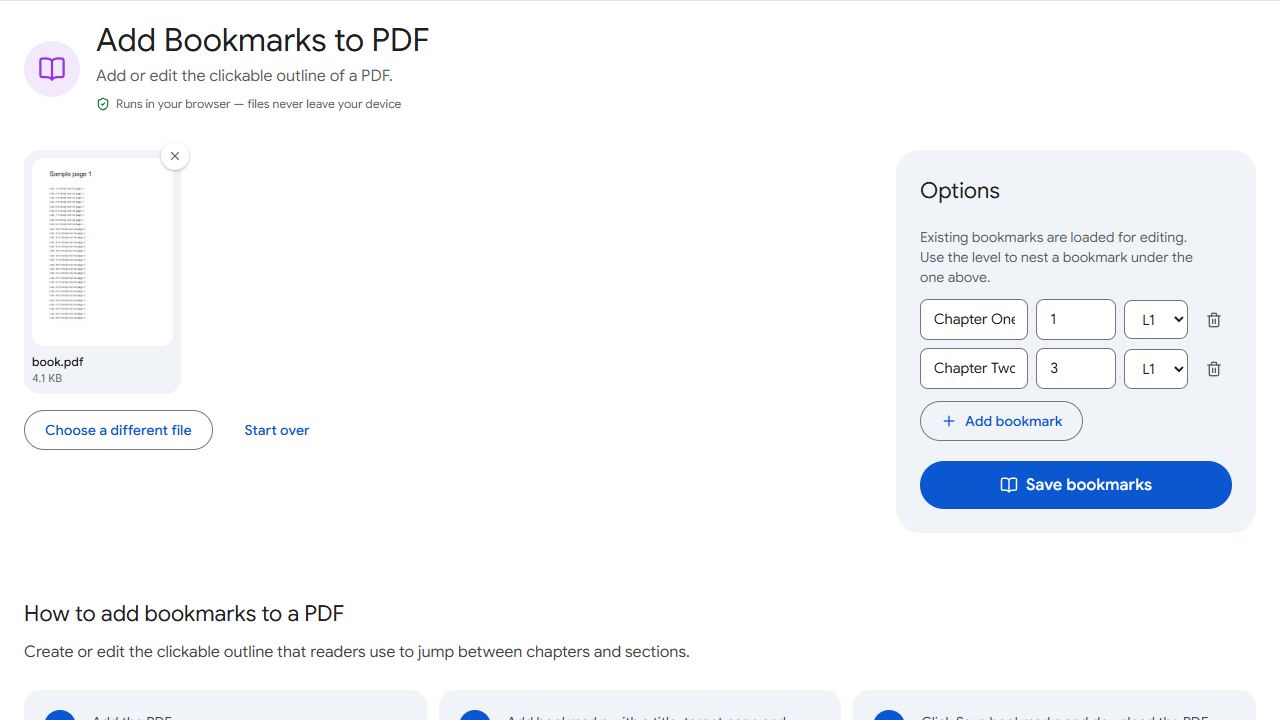
Step by step
- Open Add Bookmarks and add the PDF. Any existing bookmarks are listed.
- Add a bookmark: type its title and the page it should jump to.
- Set the level: level 1 for chapters, level 2 for sections inside them, and so on.
- Edit or delete existing entries as needed, then click Save bookmarks and download.
Planning a good outline
- Mirror the document's headings so the outline matches what readers see on the page.
- Keep titles short — sidebars are narrow.
- Two levels are usually enough. Deeper nesting is hard to use.
- Number chapters in the title ("3. Results") so the outline still reads well when collapsed.
When bookmarks help most
After merging several documents into one, add a bookmark at the start of each original file so readers can jump between them. And once the bookmarks are in place, Split by Bookmarks can turn the document back into one file per chapter in a single step.
Common problems and fixes
- The bookmark opens the wrong page.
- Check the page number — it's the position in the file, which can differ from numbers printed on the page.
- Bookmarks don't appear in my viewer.
- Open the viewer's sidebar and choose the Bookmarks or Outline panel. Some mobile viewers hide it in a menu.
- Nesting looks wrong.
- A bookmark nests under the nearest entry above it with a lower level. Check the order and levels.
- I merged files and the old bookmarks are gone.
- Merged documents start with a fresh outline. Add one bookmark at the first page of each original file, then add chapters under them.
Frequently asked questions
Yes. Existing bookmarks are listed; change titles, pages and levels, or delete them.
No. They only appear in the viewer's sidebar.
Similar, but bookmarks live in the sidebar outline, while links are clickable areas on a page.
Yes, in most mobile PDF apps and browsers, usually from a table-of-contents or outline button.