How to Split a PDF into Chapters Using Bookmarks
By Bishal Neupane · · 2 min read
Long PDFs — textbooks, theses, reports, product manuals — are often easier to share one chapter at a time. If the PDF has bookmarks, you don't need to look up page numbers at all: the bookmarks already say where each chapter starts.
Check that the PDF has bookmarks
Open the PDF in your viewer and look for a sidebar panel called Bookmarks or Outline. If you see a clickable list of chapters, you're ready. Many PDFs exported from Word, LaTeX or Google Docs have them automatically when the document uses headings.
Split by bookmarks
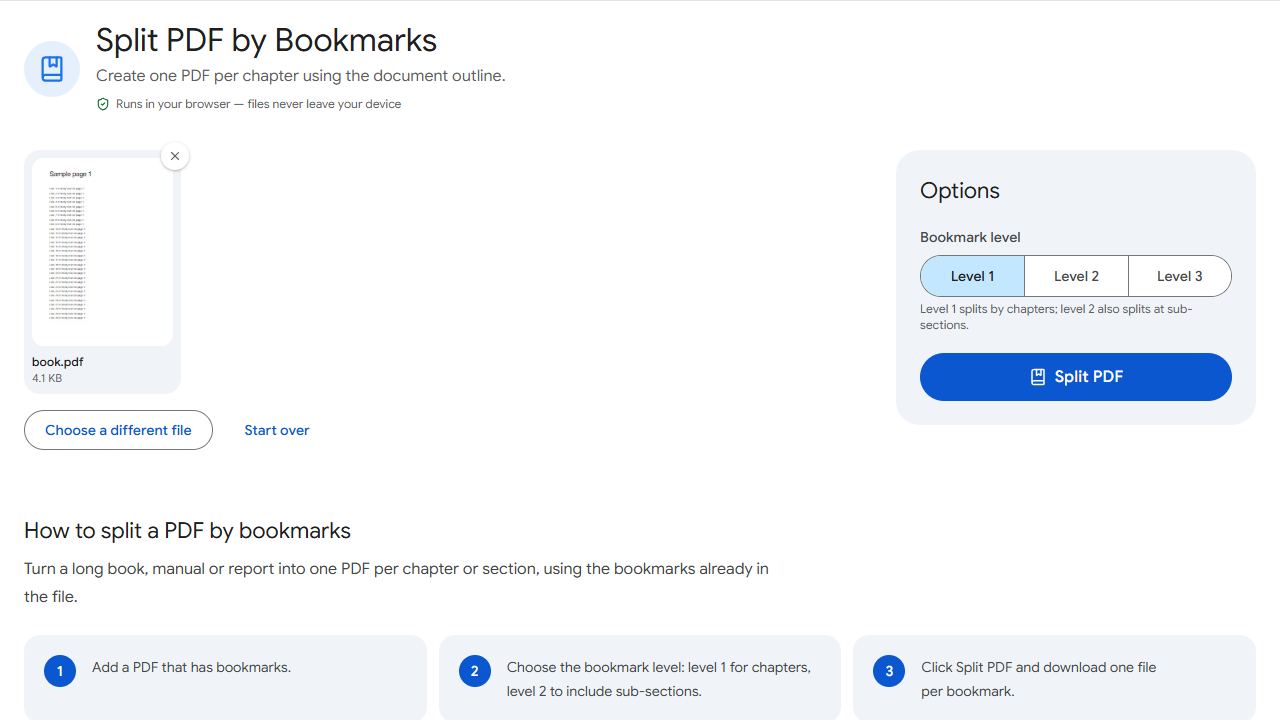
- Open Split by Bookmarks and add the PDF.
- Choose the bookmark level. Level 1 splits at top-level entries — usually chapters. Level 2 also splits at the sections inside them.
- Click Split PDF and download the files, packed into one ZIP.
Each file is named after its bookmark, so "3. Methods" becomes a file you can recognise at a glance instead of part-3.pdf.
Which level should I pick?
- Books and theses: level 1 — one file per chapter.
- Manuals with many short sections: level 2 gives one file per topic, which is handy for sharing a single procedure.
- Not sure? Try level 1 first. If the files are too large, run it again with level 2.
No bookmarks? Two options
Add them yourself with Add Bookmarks — one entry per chapter start — then split by bookmarks. This is worth it if you'll split the same document again or share it with others.
For a one-off job, use Split PDF with custom page ranges instead, e.g. 1-24, 25-51, 52-80.
Front matter (title page, contents) usually has no bookmark of its own, so it ends up in the first file.
Common problems and fixes
- Only one file comes out.
- The PDF may have a single top-level bookmark with everything nested under it. Try level 2.
- Too many tiny files.
- You chose a deep level. Go back to level 1 to split only at chapters.
- File names look odd.
- Names come from bookmark titles, with characters that aren't allowed in file names removed. Rename bookmarks first with Add Bookmarks if you want cleaner names.
Frequently asked questions
The clickable outline in a PDF viewer's sidebar that jumps to chapters and sections. They're also called the document outline.
No. Pages are copied as they are; text, images and links keep their quality.
Only if it has bookmarks. Add them with Add Bookmarks, or split by page ranges instead.