How to Add Page Numbers to a PDF (and Skip the Cover Page)
By Bishal Neupane · · 2 min read
Page numbers make a long document easy to discuss ("see page 14") and easy to put back in order if it's printed and dropped. Adding them takes under a minute.
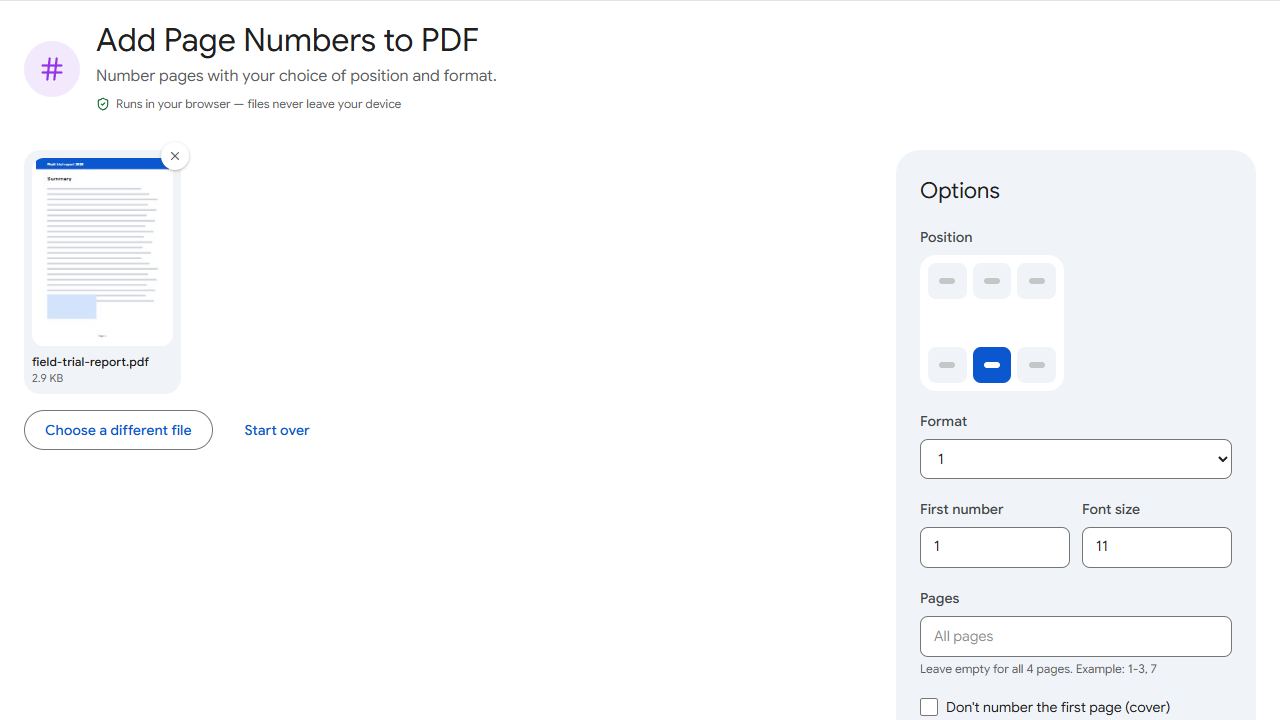
Step by step
- Open Page Numbers and add the PDF.
- Choose where the number goes on the page — bottom centre is the most common.
- Pick a format:
1,Page 1,1 of 9,Page 1 of 9or- 1 -. - Set the first number and the font size, then click Add page numbers.
Leaving the cover page unnumbered
Title pages usually don't show a number. Tick Don't number the first page (cover). To number only part of the document — for example, skipping an appendix — enter the pages to number in the pages field.
Starting from a different number
If your PDF is chapter 2 of a larger report, set the first number to continue where chapter 1 ended. For documents split into several files, this keeps the numbering consistent across all of them.
Page numbers, headers or Bates numbers?
- Just a number → Page Numbers.
- A number plus text such as the document title, your name or today's date → Header & Footer, which supports
{n},{total}and{date}placeholders. - Legal document IDs like ABC000123 that run across several files → Bates Numbering.
Common problems and fixes
- The number overlaps the footer text.
- Pick another position, such as a top corner, or make the font a little smaller.
- The number is hard to see on dark pages.
- Move it to an area with a light background, or use Header & Footer, which lets you choose the text colour.
- Numbering should start at 1 on the second page.
- Tick "Don't number the first page (cover)" and set the first number to 1 — or to 2 if the cover should still be counted.
- The document already has numbers.
- New numbers are added on top of the page. Choose a position where the old numbers aren't, or use the original file without numbers.
Frequently asked questions
Yes. Choose the "Page 1 of 9" style format; the total is filled in automatically.
Yes. Enter the pages to number in the pages field, e.g. 3-20.
They become part of the page, so treat them as permanent and keep your original file.
No. They're printed on the pages; your viewer's own page counter stays the same.