How to Convert a PDF to Word Without Uploading It
By Bishal Neupane · · 3 min read
A PDF is built for reading, not editing: every line is fixed in place. Converting it to a Word document turns those lines back into paragraphs you can rewrite, restyle and reuse, which is handy for CVs, reports, letters and forms you need to update.
Step by step
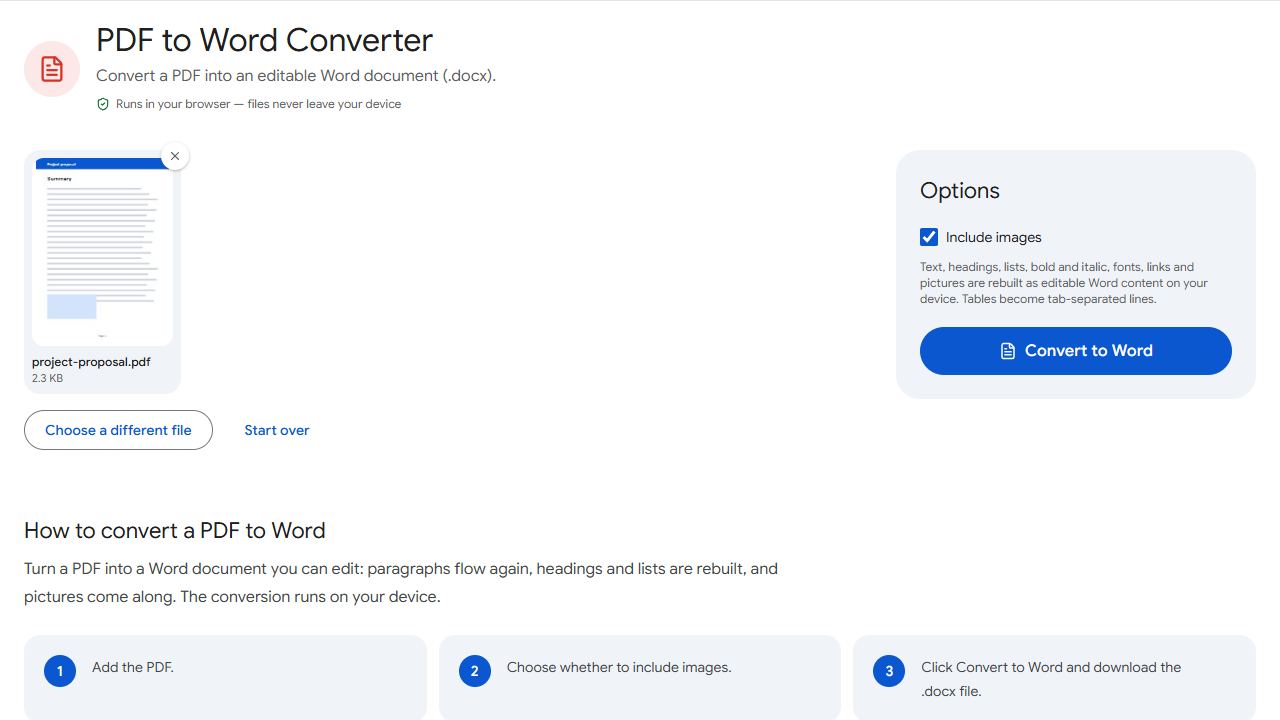
- Open PDF to Word and add the PDF.
- Leave Include images ticked if you want pictures in the document.
- Click Convert to Word and open the downloaded
.docxfile in Word, Google Docs or LibreOffice.
The PDF is read and the Word file is built on your device. Nothing is uploaded, which matters for CVs, contracts, bank statements and anything else with personal details.
What the converter keeps
- Paragraphs that flow and rewrap as you edit, with words hyphenated across lines joined back together.
- Headings detected from larger text and short bold lines, using Word's Heading styles so the Navigation pane and table of contents work.
- Bullet and numbered lists as real Word lists.
- Bold, italic, fonts and sizes, plus web and email links.
- Pictures, placed where they appear in the text.
- Page size and orientation, with each PDF page starting a new Word page.
Tidying the result in Word
Read through the document once with the PDF open alongside. Most fixes take seconds:
- Tables arrive as lines with tabs between the cells. Select those lines, then use Insert → Table → Convert Text to Table and choose tabs as the separator.
- Text colours are not carried over, so recolour coloured headings if you need them.
- Repeated headers and footers from each PDF page appear as normal lines; delete them or move them into Word's own header and footer.
- Line breaks can differ from the PDF because the text now wraps to Word's margins.
Scanned PDFs need OCR first
A scan is a picture of a page, so there is no text to convert and the converter adds those pages as images. Run OCR PDF to recognise the text, then convert the OCR'd file with PDF to Word to get editable paragraphs.
If you only need the words, not the formatting, PDF to Text is quicker and handles several PDFs at once.
Common problems and fixes
- The Word file only contains pictures of the pages.
- The PDF is a scan with no text layer. Run OCR PDF first, then convert the result.
- A table turned into lines of text.
- Tables come out tab-separated. In Word, select the lines and use Insert → Table → Convert Text to Table with tabs as the separator.
- Some words show as boxes or symbols.
- The PDF's font doesn't map its letters to real characters. Run OCR PDF on the file and convert the OCR'd copy instead.
- A heading came out as normal text.
- Headings are detected from larger or bold text. Apply a Heading style to that line in Word.
Frequently asked questions
No. The conversion runs in your browser, so the file stays on your device.
Yes. Upload the .docx to Google Drive and open it with Google Docs, or open it in LibreOffice Writer or Apple Pages.
Close for text documents, but not identical. Text becomes editable paragraphs, so lines can wrap differently, and tables, colours and drawn shapes need checking.
No fixed limit. Very long PDFs take longer and use more memory on your device.