How to Crop PDF Margins for Easier Reading on Phones
By Bishal Neupane · · 2 min read
Academic papers and books are designed for print, with generous margins. On a phone or e-reader those margins waste space, so the text shrinks to fit. Cropping them away can make the text noticeably larger.
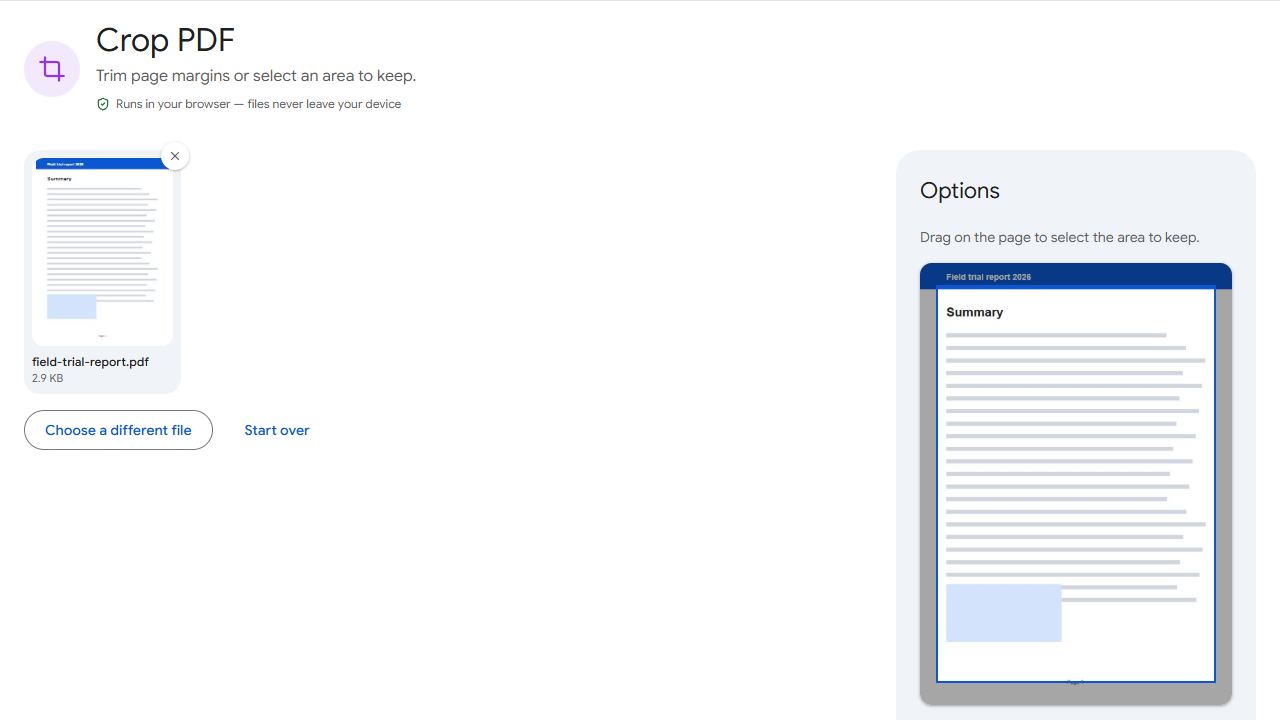
Step by step
- Open Crop PDF and add the PDF.
- Drag on the page preview to select the area you want to keep.
- Choose which pages to crop, or leave it empty for all pages.
- Click Crop PDF and download.
Tips for a good crop
- Check odd and even pages. Books often have wider inner margins that alternate sides; make sure your selection doesn't cut text on either.
- Leave a little breathing room around the text — cropping right to the letters looks cramped.
- Keep page numbers if you'll need to reference pages later.
Other uses
Crop a chart or table out of a report before converting it to an image, or trim scanner edges and the dark shadow of a book's spine. For two-page book scans, cut them apart first with Split in Half. Printing handouts? Crop first, then put several pages on each sheet with N-up.
Cropping hides the area outside the crop box; it doesn't delete it. Don't rely on cropping to remove confidential content.
Common problems and fixes
- Text got cut off on some pages.
- Margins differ between odd and even pages. Crop odd and even pages separately using the pages field.
- It cropped more than I wanted.
- The preview starts with a small margin already selected. Drag a new selection around exactly the area you want to keep before cropping.
- The PDF didn't get smaller.
- Cropping hides content but doesn't remove it, so the file size stays about the same.
- The page looks cramped on paper after cropping.
- Printers can't print to the very edge. If you'll print the cropped PDF, leave a small margin inside your selection, or use "Fit to page" when printing.
Frequently asked questions
Keep your original file — it's never changed. Many PDF editors can also restore the hidden area.
No. The visible area is shown at its original quality.
Yes. Enter that page number in the pages field.
No. Cropping cuts away the edges of the page; resizing changes the page to a new paper size such as A4. For paper sizes, use Resize PDF.