How to Copy Text from a Scanned PDF
By Bishal Neupane · · 2 min read
You try to copy a paragraph from a PDF and the whole page highlights as one block, or nothing highlights at all. The PDF is a scan: a picture of text rather than text. Here's how to get the words out.
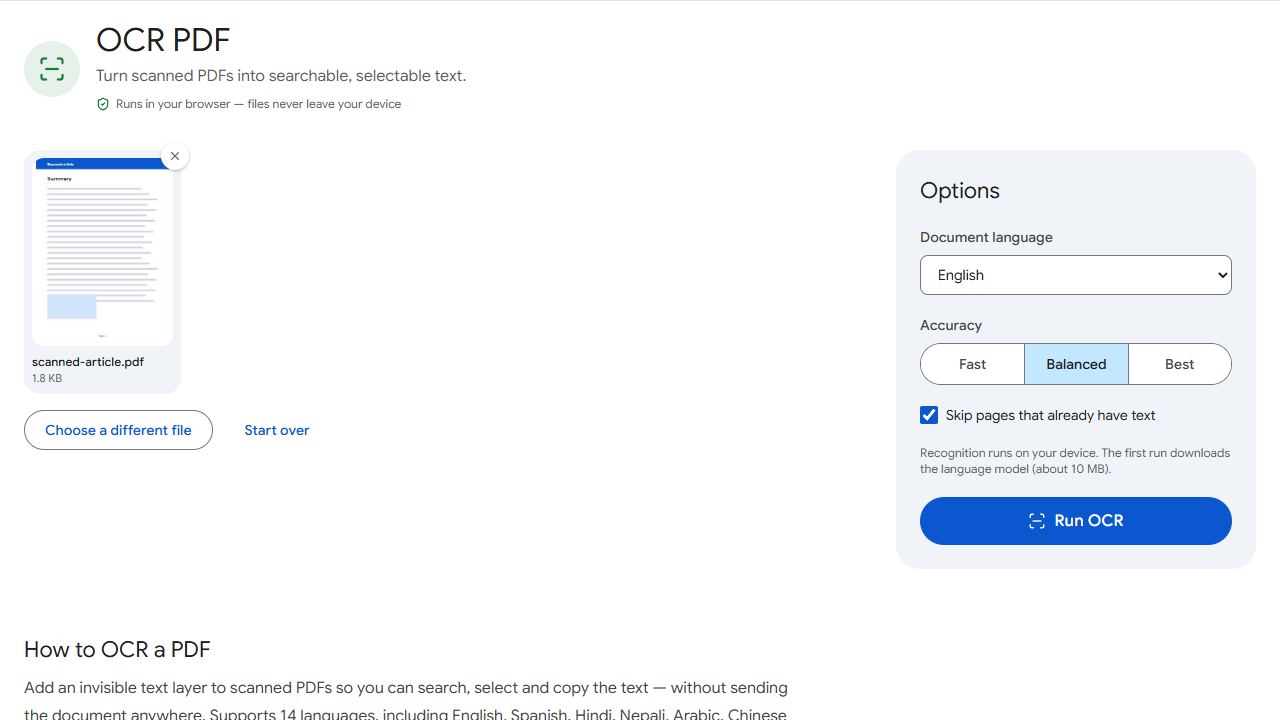
Why you can't copy the text
A scanner or phone camera saves each page as an image. Your PDF viewer shows the image, but there are no letters behind it to select. OCR (optical character recognition) reads the image and adds real text.
Step 1: Recognise the text with OCR
- Open OCR PDF and add the scanned PDF.
- Choose the document's language. It matters more than any other setting.
- Pick Best accuracy for small print, then click Run OCR and download the result.
The pages look exactly the same, but now carry an invisible text layer lined up with the words.
Step 2: Copy it or export it
- A few sentences: open the new PDF in any viewer, select the text and copy it.
- The whole document: run the OCR'd file through PDF to Text to get a plain .txt file you can open in Word or any editor.
- Keeping headings and lists: PDF to Markdown keeps more of the structure, which is handy for notes or AI tools.
Just need a line or two on your phone?
For a quick snippet, your phone may already help: iPhones can copy text straight from photos and screenshots (Live Text), and Google Lens does the same on Android. For whole documents, OCR gives you cleaner results and a searchable PDF you can keep.
Common problems and fixes
- Copied text has line breaks in odd places.
- PDFs store text line by line, so pasted paragraphs keep the original line breaks. Paste into a plain-text editor and join the lines, or use PDF to Text for the whole file.
- OCR says every page already contains text.
- The PDF already has a text layer, possibly a broken one. Untick Skip pages that already have text, or see how to copy Nepali text from a PDF for how to replace a garbled text layer.
- The recognised text is full of mistakes.
- Check the language setting first, then use Best accuracy. Blurry, skewed or low-resolution scans give poor results, so rescan at 300 DPI if you can.
- Copied text comes out as random symbols.
- The PDF uses a font whose letters don't map to real characters. Convert the pages to images and run OCR, as described in the Nepali text guide.
Frequently asked questions
Yes. Export it with PDF to Text and open or paste the .txt file in Word. Formatting such as fonts and tables isn't kept.
Only neat block capitals, and not reliably. OCR is designed for printed text.
No. Only the OCR engine and language data are downloaded, once. Recognition runs on your device.
14, including English, Spanish, French, German, Hindi, Nepali, Arabic, Chinese, Japanese and Korean.