How to Make a Scanned PDF Searchable with OCR
By Bishal Neupane · · 3 min read
You search a PDF for a word you can clearly see — and get zero results. That's because a scanned PDF is really a set of photos of pages. OCR (optical character recognition) reads those images and adds real text you can search, select and copy.
How to check whether a PDF needs OCR
Open the PDF and try to select a sentence with your cursor. If you can't highlight individual words — or the whole page highlights as one block — it's an image and needs OCR.
Run OCR in your browser
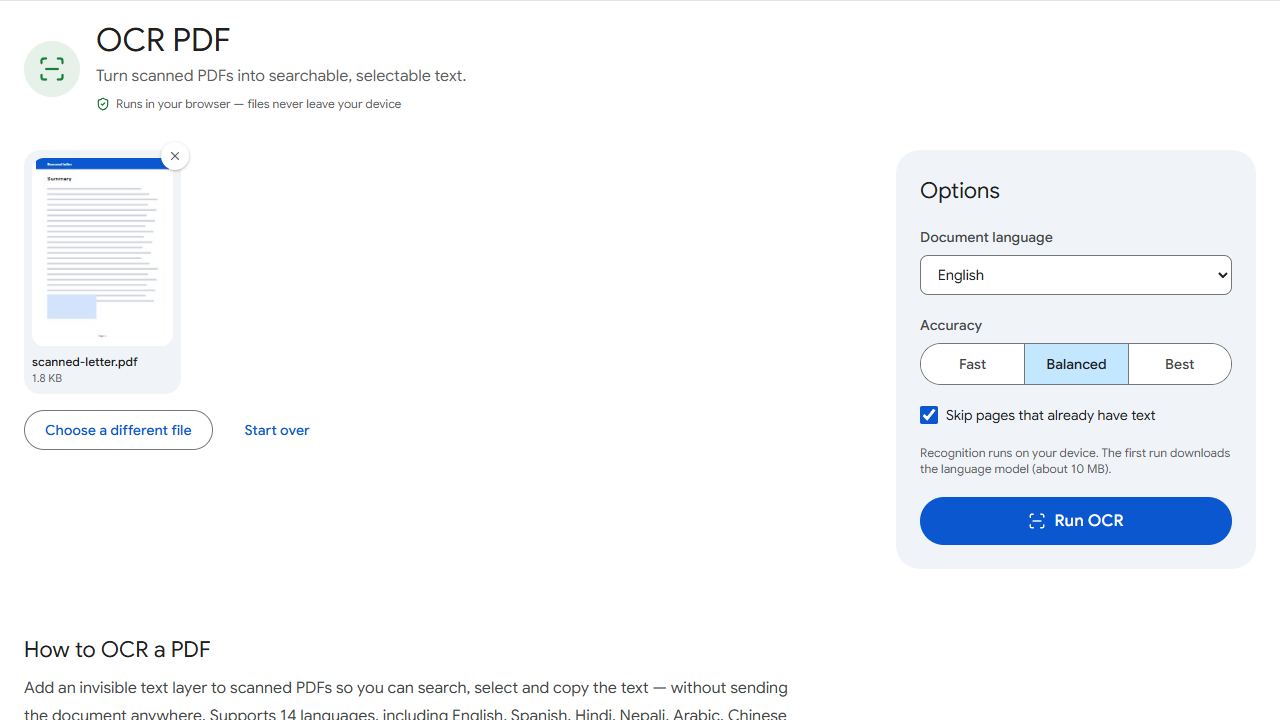
- Open OCR PDF and add the scanned file.
- Choose the document's language. 14 languages are available, including English, Spanish, French, German, Hindi, Nepali, Arabic, Chinese and Japanese.
- Choose the accuracy level, then click Run OCR.
- Download the searchable PDF.
The page images stay exactly the same; an invisible text layer is placed on top, lined up with the words. The first time you run OCR, your browser downloads the OCR engine and language data (a few megabytes) from a CDN. Your PDF itself is never uploaded.
Tips for better accuracy
- Pick the right language. OCR relies heavily on the dictionary and alphabet of the language you choose.
- Use a higher accuracy setting for small print; it renders pages at a higher resolution before reading them (slower, but more accurate).
- Start with a good scan. 300 DPI, flat pages, even lighting and straight text make the biggest difference. Rotate sideways pages first with Rotate PDF.
- Handwriting is much harder for OCR than print; expect mistakes.
What you can do next
Once a PDF has a text layer, a lot more becomes possible: extract all the text with PDF to Text, or split a batch of scanned invoices automatically with Split by Text using a phrase like "Invoice number".
Common problems and fixes
- The recognised text is full of mistakes.
- Check the language setting first — it has the biggest effect. Then try a higher accuracy setting, and make sure pages are upright and the scan is sharp. Faded, skewed or low-resolution scans give poor results.
- OCR is stuck at the start.
- The first run downloads the OCR engine and language data (a few megabytes). On a slow connection this takes a moment. If it never starts, a network filter or ad-blocker may be blocking cdn.jsdelivr.net.
- Search finds some words but not others.
- Small print, stylised fonts, stamps and handwriting are hard for OCR. Rescan those pages at 300 DPI if you can, and run OCR again at the higher accuracy setting.
- My document mixes two languages.
- Choose the language used for most of the text. Words in the other language may be recognised less accurately.
Frequently asked questions
No. The page images stay exactly the same. OCR adds an invisible text layer on top, lined up with the words, so you can search, select and copy.
No. Only the OCR engine and language files are downloaded, once. The recognition itself runs in your browser, on your device.
Usually a few seconds per page on a modern computer; longer on older phones and at the higher accuracy setting. Long documents can take a few minutes.
Only neat block capitals, and not reliably. OCR is designed for printed text.