How to Delete Pages from a PDF (Blank Pages, Covers and More)
By Bishal Neupane · · 2 min read
Scanners add blank backs, fax cover sheets sneak into documents, and exported reports sometimes end with empty pages. Deleting them makes the PDF shorter, smaller and more professional.
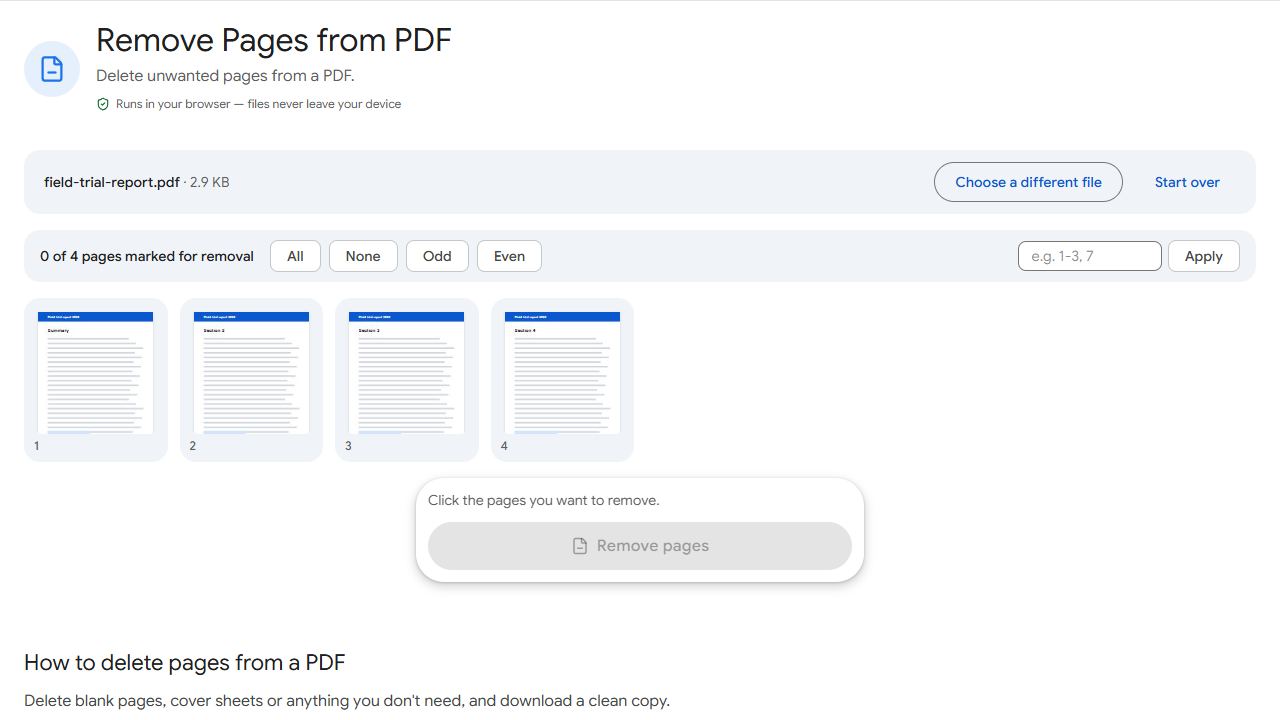
Step by step
- Open Remove Pages and add the PDF.
- Click each page you want to delete — it's marked in red — or type the page numbers.
- Click Remove pages and download the new PDF.
Changed your mind before downloading? Click a marked page again to keep it.
Spotting blank pages in scans
"Blank" scanned pages are rarely pure white: they often show faint text bleeding through from the other side, or a grey edge. Look at the thumbnails for pages with no real content, and zoom in on your viewer if you're unsure before deleting.
Deleting many pages
If you're deleting more pages than you're keeping, it's quicker to do the opposite: select the pages to keep with Extract Pages. And if you also need to reorder or rotate pages, do everything at once in Organize PDF.
Common problems and fixes
- I deleted the wrong page.
- Your original file is never changed. Start over with it and select again.
- "You can't remove every page."
- A PDF needs at least one page. If you want to discard the whole document, simply don't use it.
- The file is still large after deleting pages.
- Large sizes usually come from high-resolution scanned images on the remaining pages. Split it for email with Split by Size.
- The page numbers printed on the pages don't match.
- The tool counts pages by their position in the file, starting at 1. A document whose printed numbering starts after a cover or contents page will differ; click thumbnails to be sure.
Frequently asked questions
Yes. Remove Pages works in mobile browsers; tap the pages to delete.
No. The remaining pages stay exactly as they were.
Yes. Type a range such as 5-12 in the pages field.
Bookmarks that pointed to deleted pages no longer have a target. If your document relies on them, check the outline afterwards and fix it with Add Bookmarks.