How to Rearrange, Rotate and Reorder PDF Pages
By Bishal Neupane · · 2 min read
Pages out of order are one of the most common PDF problems — from scans fed in the wrong way to reports assembled from several sources. A visual organizer lets you fix everything by eye instead of by page number.
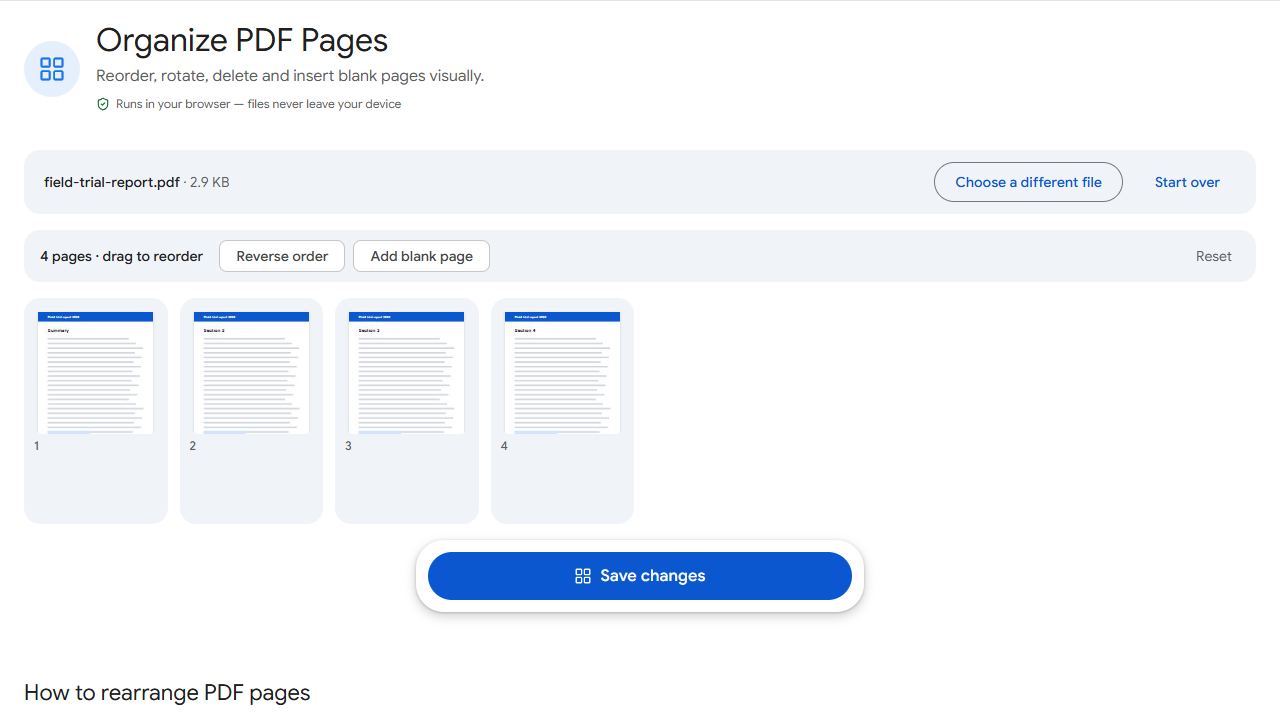
Step by step
- Open Organize PDF and add the PDF. Every page appears as a thumbnail.
- Drag pages into the right order. On a phone, press and hold a page until it lifts, then drag.
- Use each page's buttons to rotate it, duplicate it, delete it or insert a blank page after it.
- Click Save changes and download.
Handy extras
- Reverse order flips the whole document — perfect when a scanner fed the stack last page first.
- Insert blank page is useful before printing double-sided, so a new chapter starts on a right-hand page.
- Duplicate lets you repeat a page, such as a form you need to fill twice.
Tips for long documents
Moving a page a long way is easier in two steps: first move it roughly into place, then fine-tune. For one simple change — just rotating or just deleting — the dedicated tools Rotate PDF and Remove Pages are faster.
Common problems and fixes
- Dragging scrolls the page on my phone.
- Press and hold a thumbnail until it lifts before dragging; a quick swipe scrolls instead.
- A page shows up twice.
- You may have pressed Duplicate. Delete the extra copy with its delete button.
- I want to start again.
- Click Reset above the page grid to return to the original order.
- Thumbnails are too small to tell pages apart.
- Zoom your browser in (Ctrl and +, or pinch on a phone) to make thumbnails larger while you rearrange.
Frequently asked questions
Merge them first with Merge PDF, then rearrange the combined file.
Yes. Rotations you make here are written into the new PDF.
Yes. Focus a page and use the keyboard to pick it up and move it, which also helps screen-reader users.
No. Pages are moved as they are; only rotations you choose are applied. Text, images and links are unchanged.