How to Extract Pages from a PDF and Save Them as a New File
By Bishal Neupane · · 2 min read
A 40-page contract when someone only needs the signature page; a full report when your manager asked for the summary. Extracting just the relevant pages makes documents easier to read, faster to send and safer to share.
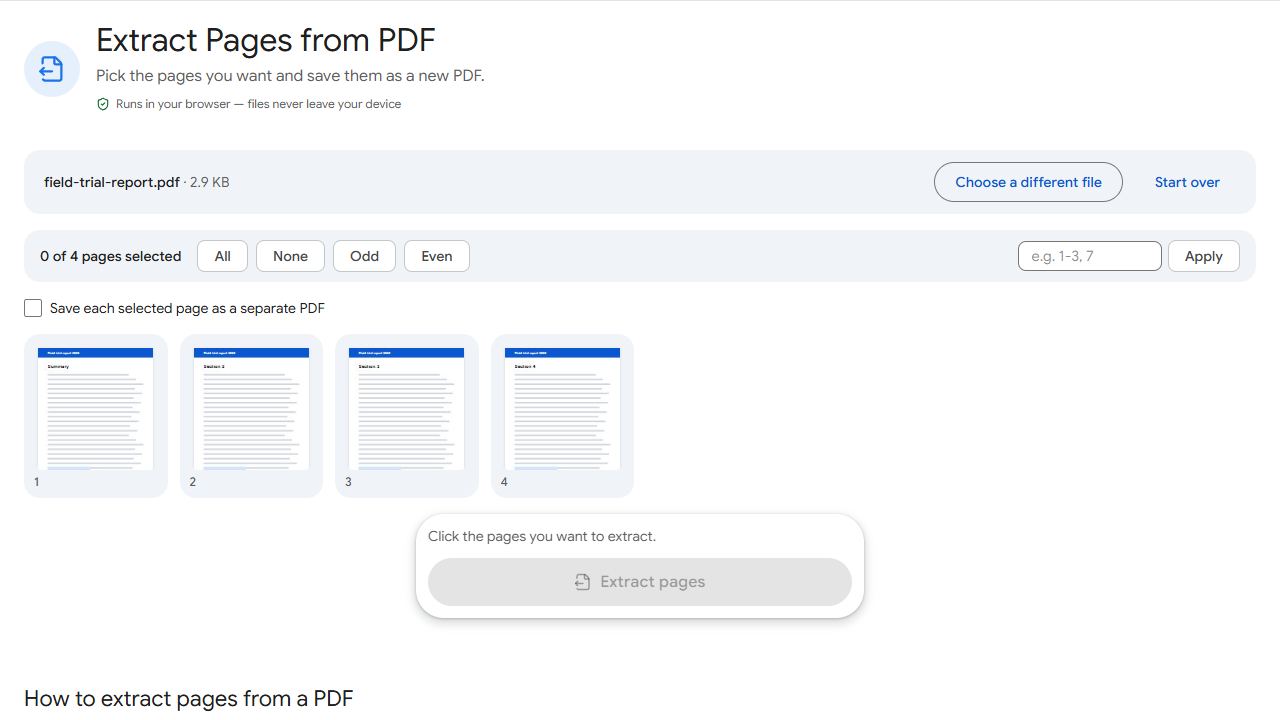
Step by step
- Open Extract Pages and add the PDF.
- Click the thumbnails of the pages you want, or type them, e.g.
1, 4, 10-12. - To get one file per page instead of a single PDF, tick Save each selected page as a separate PDF.
- Click Extract pages and download.
The pages keep their original quality, text and links. Your original PDF isn't changed.
Extract, remove or split?
- Keep a few pages → Extract Pages.
- Keep most pages, drop a few → Remove Pages is quicker.
- Break the whole document into parts → Split PDF.
A privacy habit worth having
When a form or agency asks for "a copy of your bank statement", they rarely need every page. Extracting only the page with the information they need means fewer of your details travel by email. Because PDFCraftly runs in your browser, the full document never leaves your device either.
Common problems and fixes
- The page numbers I typed don't match what I see.
- Page numbers here are positions in the file (1 = first page), which can differ from numbers printed on the pages. Click thumbnails if you're unsure.
- I got a ZIP instead of one PDF.
- You ticked the option to save each page separately. Untick it to get a single PDF.
- The pages are out of order.
- Pages keep their original order. Rearrange the new file in Organize PDF if needed.
- Thumbnails take a while to appear.
- Very long or image-heavy PDFs render page previews gradually as you scroll. You can type page numbers straight away without waiting for every thumbnail.
Frequently asked questions
No. You get a new file with the pages you picked.
Extract from each file, then combine the results with Merge PDF.
Links on the extracted pages are kept. If you also need a table of contents, add bookmarks to the new file.
Yes. Tap the page thumbnails you want, or type the page numbers, then download the new PDF.