How to Merge PDF Files on iPhone or iPad (No App Needed)
By Bishal Neupane · · 3 min read
The App Store is full of PDF apps that want a subscription before they'll join two files. You don't need one: Safari can merge PDFs on its own, and the files never leave your phone.
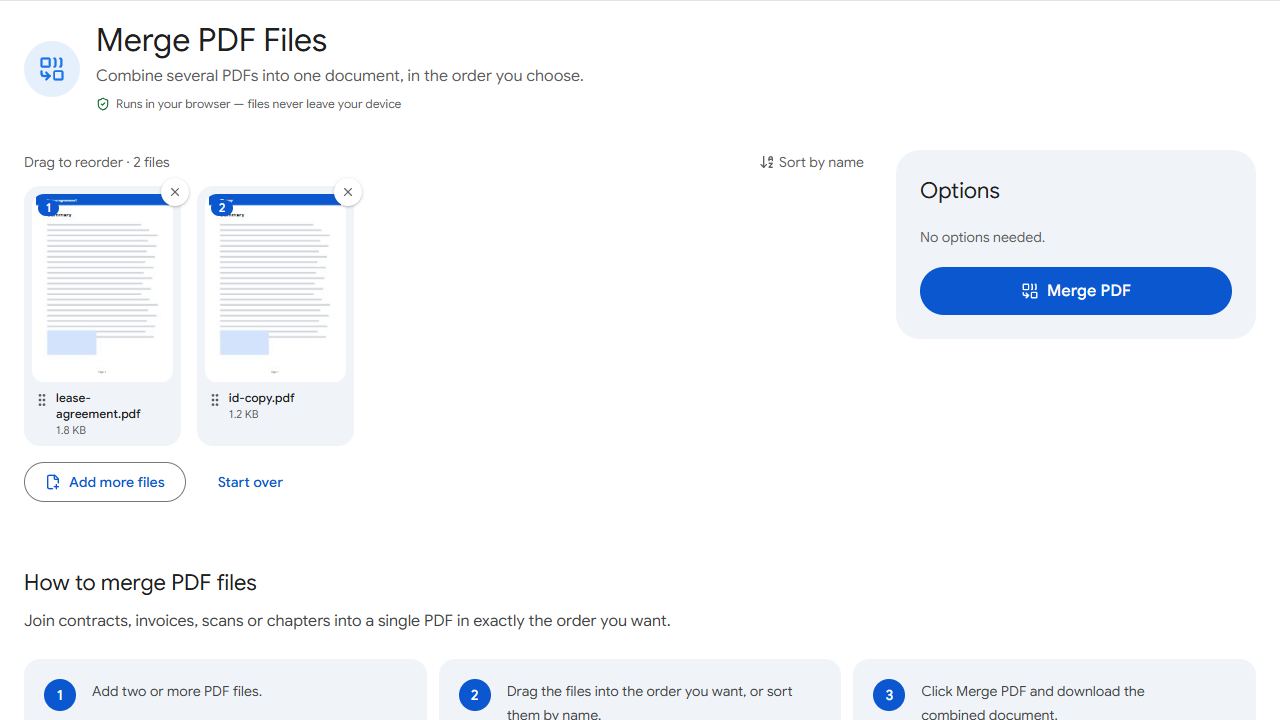
Merge PDFs in Safari
- Open Merge PDF in Safari (Chrome and other iPhone browsers work too).
- Tap the upload area and choose the PDFs from the Files app — iCloud Drive, On My iPhone or any connected storage. You can select several at once.
- Press and hold a file card, then drag it to change the order.
- Tap Merge PDF, then download. Safari saves the file to the Downloads folder in the Files app.
Can't find the download? Open the Files app, tap Browse, then Downloads. You can choose a different download folder in Safari's settings.
PDFs from Mail, WhatsApp or other apps
Attachments usually aren't in the Files app until you save them there. Open the PDF in Mail, WhatsApp or whichever app it came from, tap the Share button and choose Save to Files. It will then show up in the picker.
Photos of documents aren't PDFs yet. Turn them into one with JPG to PDF first, then merge that file with the others.
What about the Files app's Create PDF?
The Files app can combine files too: tap Select, choose the files, tap the ••• button and pick Create PDF. It's quick for two or three files, but it joins them in the order they're sorted in the folder and gives you no way to rearrange or remove individual pages.
Use Merge PDF when the order matters or you want to check the files before joining them.
Fix the order or remove pages afterwards
Open the merged file in Organize PDF to move single pages, rotate a sideways scan or delete a page you didn't need. On a phone, press and hold a page thumbnail until it lifts, then drag it.
Common problems and fixes
- The Merge button stays greyed out.
- Merge needs at least two PDFs. If a file didn't appear in the list, it may not be a PDF — photos need converting with JPG to PDF first.
- Safari reloaded the page and my files disappeared.
- iOS sometimes unloads a background tab to save memory when you switch apps. Save every attachment to the Files app before you start, so you can pick them all without leaving Safari.
- I can't find the merged file.
- Open the Files app, tap Browse, then Downloads. If it isn't there, check which download folder Safari uses in its settings.
- One PDF won't add or causes an error.
- It may be password-protected or damaged. If it's protected, remove the password with Unlock PDF first, then try again.
Frequently asked questions
No. Merge PDF runs in Safari, Chrome or any other browser on iPhone and iPad.
No. The page processes the files on your iPhone itself; nothing is sent to a server.
Yes, exactly the same way, and the larger screen makes reordering files easier.
There's no fixed limit, and each file can be up to 200 MB. The practical limit is your phone's memory: dozens of normal documents are fine, but very large scans are best merged in batches.