How to Convert Photos and Images to a PDF
By Bishal Neupane · · 2 min read
Receipts, handwritten notes, screenshots, ID photos — many forms want them as a single PDF, not a pile of image files. Here's how to turn images into a tidy, printable PDF.
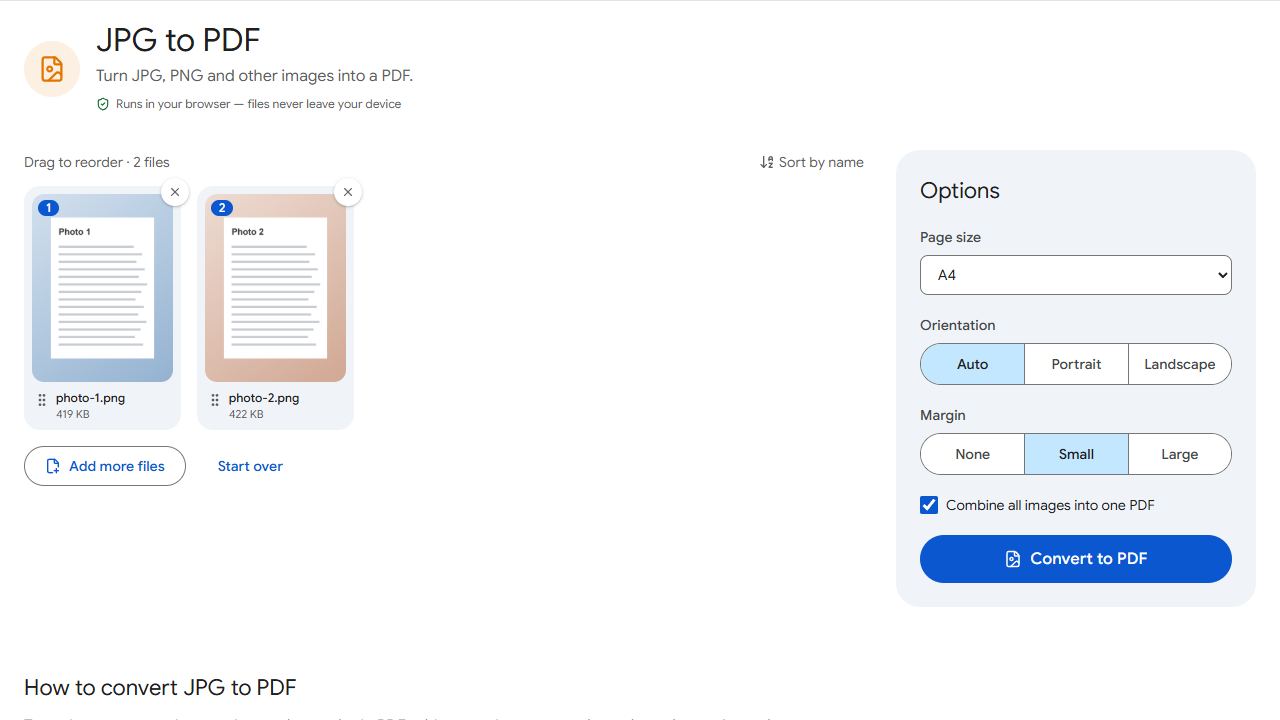
Step by step
- Open JPG to PDF and add your images. JPG, PNG, WebP, GIF and BMP are supported.
- Drag the images into the order you want. Each image becomes one page.
- Pick a page size: Same as image keeps each page the size of its photo; A4 or US Letter makes a document that prints cleanly.
- Choose portrait or landscape and a margin, then click Convert to PDF.
Which page size should I use?
- For printing or official forms — A4 (or US Letter in North America). Images are fitted onto standard pages.
- For screen viewing — Same as image, so nothing is shrunk or padded.
- Add a small margin if the PDF will be printed, so nothing gets cut off at the edges.
iPhone photos (HEIC)
iPhones save photos in HEIC format by default, which many websites can't read. Two easy fixes:
- Share the photo to yourself by email or a messaging app — most convert it to JPG on the way.
- Or change the camera setting for future photos: Settings → Camera → Formats → Most Compatible.
Photographing documents?
If your images are photos of paper documents, Scan to PDF is the better tool: it has a scan mode that boosts contrast so the pages look like a proper scan. To add the images to an existing PDF, convert them first, then combine both files with Merge PDF.
Common problems and fixes
- My HEIC photos aren't accepted.
- Convert them to JPG first (for example by sharing them to yourself), or set Settings → Camera → Formats → Most Compatible on your iPhone for future photos.
- Photos appear sideways in the PDF.
- JPG orientation information is read automatically. If a photo is still sideways, rotate the page afterwards with Rotate PDF.
- The PDF is very large.
- Modern phone photos are several megabytes each. Use fewer or smaller photos, or split the PDF afterwards with Split by Size.
- Images have white borders.
- That's the margin setting, or an A4/Letter page with a different shape from your photo. Choose no margin and Same as image to fill the page.
Frequently asked questions
There's no fixed limit; very large batches are limited by your device's memory.
Yes. Drag the image cards into the order you want before converting.
Not automatically — images are pictures of text. Run OCR PDF on the PDF to make it searchable.
JPG, PNG, WebP, GIF and BMP.