How to Remove Comments and Highlights from a PDF Before Sharing
By Bishal Neupane · · 2 min read
A PDF that went through review often carries more than its text: reviewers' comments, highlights, sticky notes and scribbles. Before you send the final version to a client or publisher, clean it up.
Why it matters
- Comments can be revealing — internal notes like "we can go lower on price" or questions about a colleague's work.
- They look unprofessional in a final document.
- Hidden comments still travel with the file. Collapsed notes aren't visible on screen but anyone can open them.
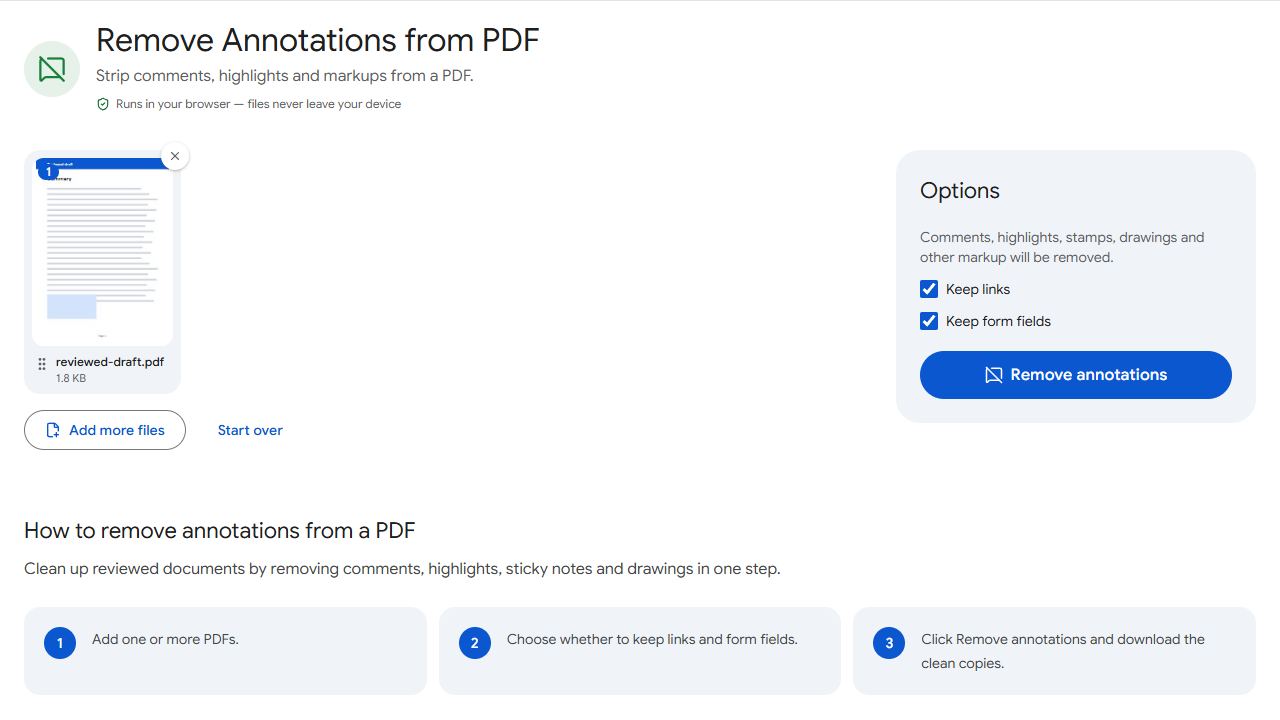
Remove annotations in one step
- Open Remove Annotations and add one or more PDFs.
- Decide whether to keep links and form fields. Both are kept by default; untick them to remove them too.
- Click Remove annotations and download the clean copies.
Black boxes are not redaction
Drawing a black rectangle over text — with a highlighter, shape or comment tool — only covers it. The words are still in the file and can be copied, searched or revealed by removing the box. In fact, removing annotations will remove those boxes too.
To truly get rid of sensitive information, delete whole pages you don't want to share with Remove Pages, or ask whoever created the document to remove the text from the source file and export a new PDF.
Check the metadata too
PDF files also store properties like author and title. Before publishing, check them with Edit Metadata — see the guide on PDF metadata.
Common problems and fixes
- Links stopped working after cleaning.
- You unticked "keep links". Run the original file again with links kept.
- Form fields disappeared.
- Keep the "form fields" option ticked, which is the default.
- Highlights are still visible.
- Some highlights are part of the page itself (for example, printed and then scanned), not annotations. Those can't be removed as comments.
- Hidden text appeared after removing black boxes.
- The boxes were annotations covering text that was never deleted. Don't share that document; remove the pages or ask for a properly redacted source.
Frequently asked questions
Comments, sticky notes, highlights, underlines, strike-throughs, drawings and stamps added on top of the page by a PDF viewer.
Yes. Add multiple PDFs; the cleaned copies download together.
No. Only the markups on top are removed.
No. Redaction permanently deletes content underneath. Removing annotations only removes markups.