How to Compress a PDF Without Losing Quality
By Bishal Neupane · · 3 min read
A PDF that's too big to email or upload is almost always full of images: scanned pages or photos. Compressing those images the right way can cut the file to a fraction of its size while the text stays perfectly sharp.
What makes a PDF big
- Scanned pages. Every page of a scan is a picture, often saved at 300–600 DPI.
- Photos. Pictures from phones and cameras are several megabytes each.
- Text and vector graphics are tiny by comparison. A 50-page report without images is often under 1 MB.
That's why compression works so well on scans and photo-heavy documents, and changes little in text documents.
Compress a PDF step by step
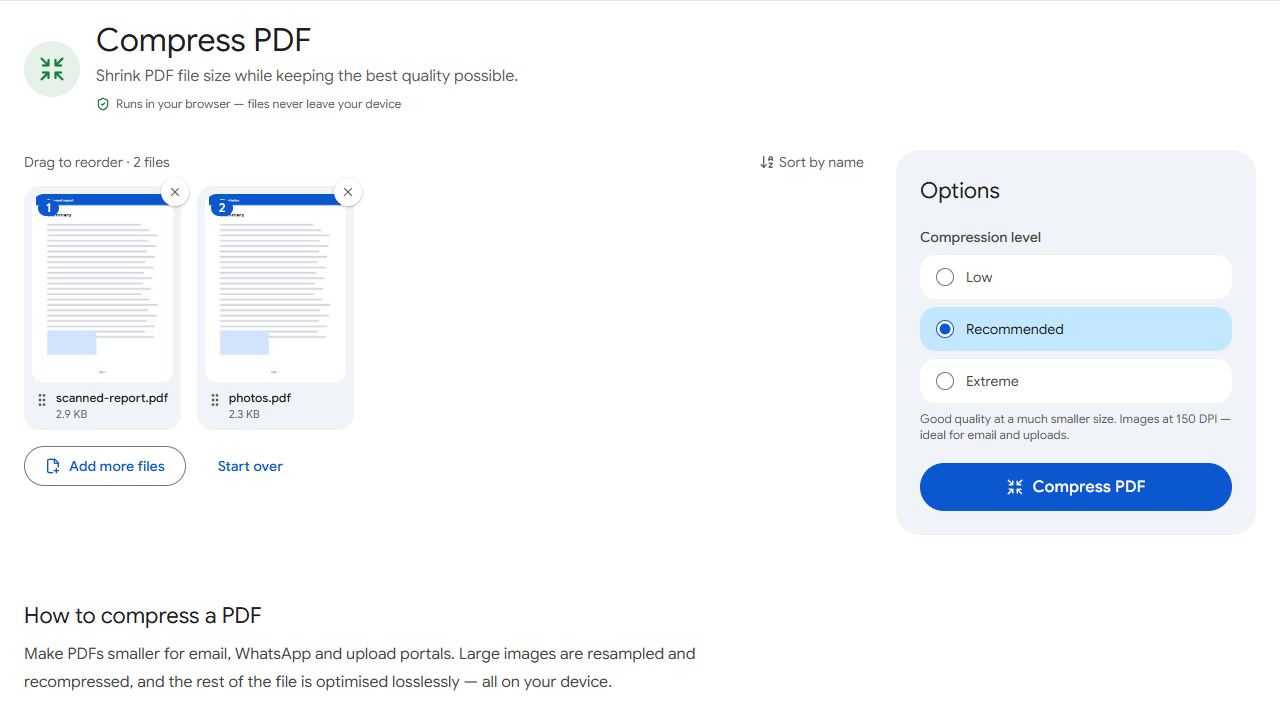
- Open Compress PDF and add one or more PDFs.
- Choose a level: Low, Recommended or Extreme.
- Click Compress PDF. The result shows how much smaller the file got.
- Download the compressed PDF. Several files download together as a ZIP.
Large images are resampled to the level's resolution and saved as high-quality JPEGs, then the rest of the file is recompressed without any loss. Text, fonts and vector drawings aren't touched, and a file is never made bigger. Everything happens in your browser, so nothing is uploaded.
Which level should you choose?
- Low keeps images at up to 220 DPI. Use it for documents you'll print.
- Recommended uses 150 DPI, the best balance for email, WhatsApp and upload portals.
- Extreme uses 96 DPI and stronger JPEG compression. It's fine for reading on screen, but small print in scans may look softer.
Need a specific size, like 300 KB?
Upload portals often state an exact limit. Choose Target file size in Compress PDF and pick or type the limit; the tool tries progressively stronger settings and keeps the sharpest version that fits. There are ready-made pages for common limits: 100 KB, 200 KB, 300 KB, 500 KB and 1 MB.
Still too big?
- Remove pages nobody needs with Remove Pages.
- Cut the file into parts under a size limit with Split by Size and send them separately.
- Rescan at 200–300 DPI instead of 600. It's still sharp and far smaller.
Compress last: merge, sign and edit first, then compress the final file once.
Common problems and fixes
- The file barely got smaller.
- It probably contains mostly text, which is already compact, or its images are already compressed. Try Extreme for scans; for text documents, removing pages is the only way to make it much smaller.
- Images look blurry after compressing.
- Use Low, which keeps images at up to 220 DPI, or Recommended if you used Extreme.
- It says the PDF is password-protected.
- Remove the password with Unlock PDF first, compress, then add it back with Protect PDF if you need to.
- Colours in a photo look slightly different.
- Recompressed images are saved as standard RGB JPEGs. CMYK images, used in print-ready files, are left exactly as they were; for press work, use Low or skip compression.
Frequently asked questions
No. Text, fonts and vector graphics stay exactly as they are; only large images are resampled.
Yes. Add them together; each one is compressed separately and they download as a ZIP.
No. Compression runs in your browser, on your device.
Scans and photo-heavy PDFs often shrink by half or more. Text-only PDFs change little because they're already small.