PAN Card Photo and Signature Size: How to Resize for the Online Form
By Bishal Neupane · · 3 min read
Applying for a PAN card online means uploading a photo, a signature and supporting documents, each with a strict size limit. A phone photo is a hundred times too big. Here are the limits on the Protean (formerly NSDL) form and how to meet them without blurring your picture.
Sizes on the Protean (NSDL) form
Protean's instructions for scanned uploads give these specifications (checked in October 2026):
- Photograph: colour JPEG, 200 DPI, 3.5 × 2.5 cm, maximum 20 KB.
- Signature: colour JPEG, 200 DPI, 2 × 4.5 cm, maximum 10 KB.
- Supporting documents: black and white, 200 DPI, PDF/A or JPEG, maximum 300 KB per page.
At 200 DPI, 3.5 cm is about 276 pixels and 2.5 cm about 197 pixels, so the photo is small to begin with. That's why the KB limits are low.
Requirements differ between Protean and UTIITSL, and can change. Always check the instructions on the form you're filling in, and type its exact limit into the tool if it differs from the numbers here.
Resize the photo to 20 KB
- Crop your photo to a passport-style head and shoulders in your phone's Photos or Gallery app.
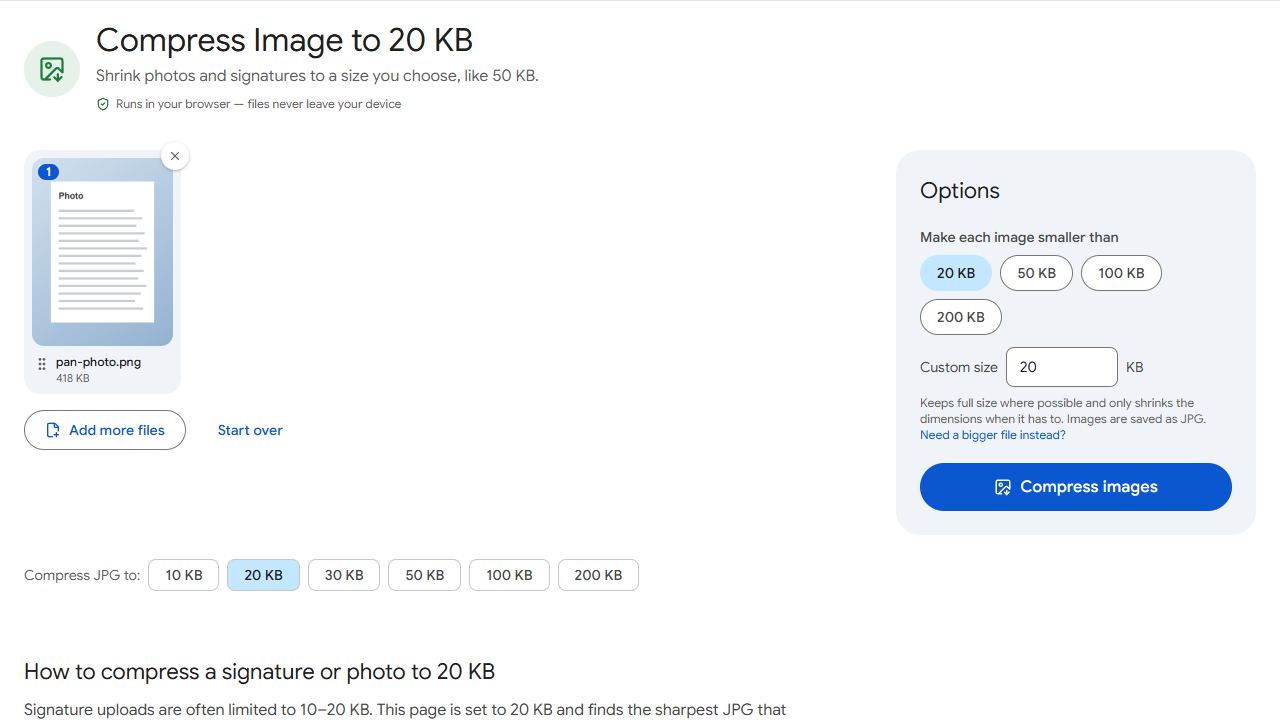
- Open Compress Image to 20 KB and add the photo.
- Click Compress images and download the JPG. The result shows its size in KB and its dimensions in pixels.
The tool first lowers the JPEG quality at full size and only shrinks the image when that isn't enough, so you get the sharpest photo that fits.
It doesn't set pixel dimensions or DPI for you. If the form checks the photo's dimensions, crop it to the 3.5 × 2.5 cm shape and resize it in your phone's photo editor to about 276 × 197 pixels (the signature to about 157 × 354 pixels) before compressing.
Resize the signature to 10 KB
- Sign on plain white paper with a dark pen and photograph it in daylight, straight on.
- Crop tightly around the ink.
- Open Compress Image to 10 KB, add the signature and download the JPG.
A tight crop matters most at 10 KB: white space around the signature uses up the limit without adding anything.
Supporting documents under 300 KB a page
Scan proof of identity, address and date of birth in black and white, which keeps files much smaller than colour. Then use Compress PDF to 300 KB. The specification says 300 KB per page, but if you aren't sure how the form counts a multi-page file, keeping the whole PDF under 300 KB is the safe choice. To try a different limit, type it into Target file size in Compress PDF.
If the form says the file is too small
Some forms also set a minimum. If a tightly cropped signature comes out too small, Increase JPG Size adds invisible padding to reach the minimum without changing the picture.
Common problems and fixes
- The photo looks blurry at 20 KB.
- Crop tighter before compressing. A head-and-shoulders crop leaves more of the 20 KB for your face, so it stays sharp.
- The form rejects the photo's dimensions.
- Crop to the shape the form asks for before compressing. The tool keeps your crop and only makes the image smaller if 20 KB can't be reached otherwise; the result shows the final pixels.
- My signature comes out faint or grey.
- Sign with a dark pen, photograph it in daylight without shadows, and crop away the paper around it. Then compress to 10 KB again.
- The scanned document is over 300 KB.
- Scan in black and white instead of colour, remove pages the form doesn't ask for with Remove Pages, and compress with Compress PDF to 300 KB.
Frequently asked questions
Protean's instructions ask for a colour JPEG at 200 DPI, 3.5 × 2.5 cm, of at most 20 KB. The signature is 2 × 4.5 cm and at most 10 KB.
Protean's specification says colour for both the photo and the signature, and black and white for supporting documents.
Not necessarily. Check the limits on the UTIITSL form and type them into the tool's custom size box.
No. Compression runs in your browser, so your photo and signature never leave your device.