Dhaka University Admission Photo: 460–480 × 600–620 px, 30–200 KB
By Bishal Neupane · · 5 min read
University admission in Bangladesh runs on tight deadlines, and the photo upload is where applications stall. The University of Dhaka portal checks the photo's width, height, file size and format, and a file that misses any one of them is refused. Here are the published numbers, with the source, and the quickest way to meet them from a phone.
What the DU portal asks for
The University of Dhaka's online application for its affiliated and constituent colleges lists the photo rule as step 3 of the application procedure (see the portal):
- Width: 460–480 pixels.
- Height: 600–620 pixels.
- File size: 30–200 KB.
- Type:
.jpgor.jpeg.
The main DU unit admission site (admission.eis.du.ac.bd) publishes its own instructions with each year's circular; at the time of writing it listed the 2026–27 application window as 11 to 25 November 2026 but did not show a photo specification on its front page, so check the photo step of the form itself before you upload. Other admission systems set their own numbers. The GST cluster admission site, for example, has a dedicated Photo Guideline page at gstadmission.ac.bd; it was not reachable when this guide was checked, so follow the limits stated there rather than the DU figures.
Portrait shape matters here. 480 × 620 pixels is roughly 3:4, the usual passport-photo proportion, so a studio photo normally fits once it is resized.
Get the pixel size right first
PDFCraftly compresses images to a file size; it does not resize them to a chosen width and height. Set the dimensions in your phone's gallery app or any photo editor before compressing.
- Open the photo and choose Crop. Pick the 3:4 portrait shape and place your head and shoulders in the frame, following the pose rules in the admission instructions.
- If the editor has a Resize option, set the width to 480 and the height to 620 pixels, which is inside both ranges. Save as JPG.
- If a studio took the photo, ask for a digital copy at 480 × 620 pixels. If the studio sends a PDF, convert it with PDF to JPG first.
You can check the result without any other software: add the photo to Compress JPG and the result shows its width and height.
Bring the photo under 200 KB
A 480 × 620 JPG saved at a phone's default quality is often 250–400 KB, over the 200 KB ceiling. Compressing it to the limit is one step, and the photo never leaves your device.
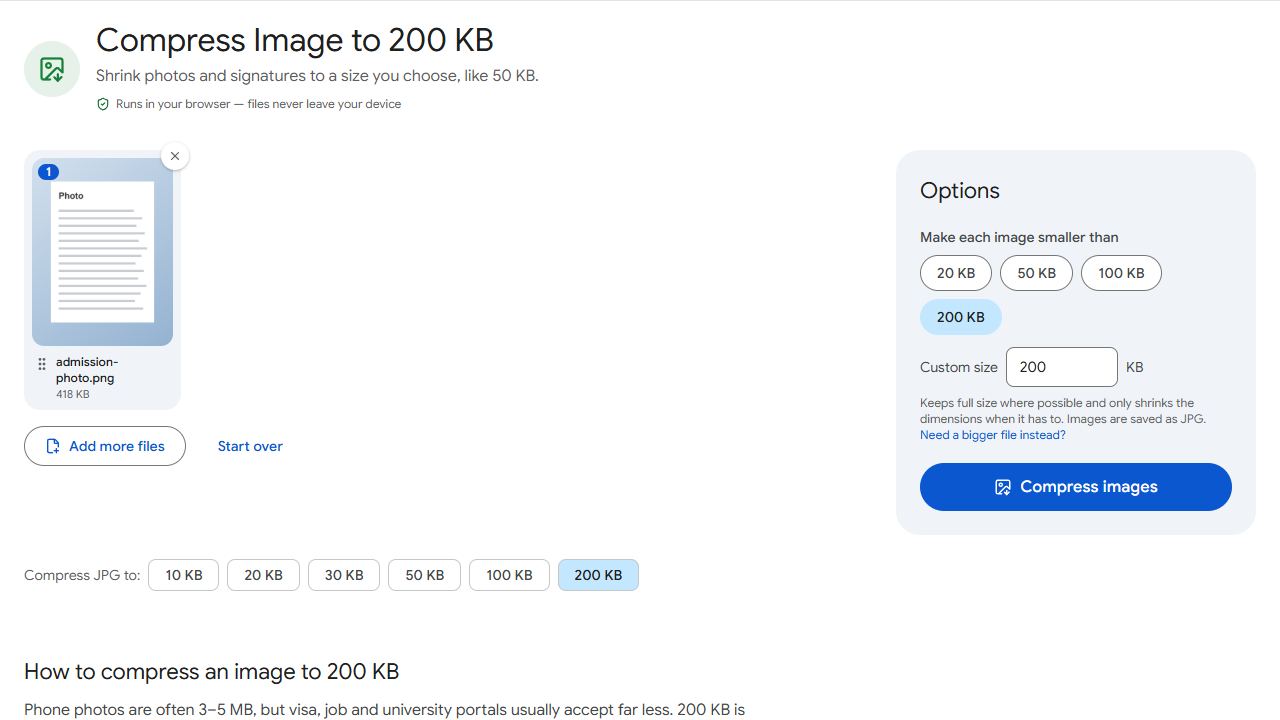
- Open Compress JPG to 200 KB and add the photo. For a wider safety margin, open Compress JPG instead and type 150 in Target file size.
- Click Compress images and download the JPG.
- Read the result line, for example "176 KB — fits under 200 KB", and confirm the width and height still read 480 × 620.
The compressor lowers JPEG quality at full size first and only shrinks dimensions if that is not enough. A 480 × 620 photo comfortably fits in 200 KB at full size, so the dimensions you set are kept. If the result shows smaller dimensions, the file was bigger than 480 × 620 to start with: resize it and compress again.
Photo too small? Meeting the 30 KB minimum
The portal also rejects photos under 30 KB. That happens when a photo was passed around on messaging apps, which recompress heavily, or saved at very low quality. The better fix is to go back to the original or to the studio file, which will be well above 30 KB at 480 × 620 pixels.
If the only copy you have is a clear but small JPG, open Increase JPG Size, add it, type 40 KB as the minimum and download. The picture data is not changed; the extra bytes go into a JPEG comment that the portal ignores. Do not use this on a blurry photo: the admission office prints the photo on the admit card, and padding does not add detail.
Pick a target inside the range rather than at its edge: 150 KB for the maximum and 40 KB for the minimum both leave room whichever way the portal counts kilobytes. PDFCraftly checks results with 1 KB = 1,000 bytes.
Checklist before you upload
- Width 460–480 and height 600–620 pixels; 480 × 620 is a safe choice.
- File size between 30 and 200 KB, shown in the Compress JPG or Increase JPG Size result.
- Saved as
.jpgor.jpeg, with an English file name such asdu-photo.jpg. - A recent colour photo that follows any pose or background rule in the admission instructions.
- Checked against the current form: the numbers above come from the affiliated-college portal and may differ on other DU or GST forms.
Applying for a government job as well? The Teletalk portals use a different size: see Teletalk photo and signature size. All guides are listed at Guides.
Common problems and fixes
- The portal says the width or height is out of range.
- Only pixels fix this. Open the photo in your gallery app or a photo editor, crop to 3:4 and resize to 480 × 620 pixels, then run it through Compress JPG again. The result line shows the final width and height so you can confirm before uploading.
- The photo is 480 × 620 but comes out smaller after compressing.
- That only happens when quality alone cannot reach the target, which is unlikely at 200 KB for this size. Make sure you added the resized file rather than the original camera photo, and target 150–200 KB, not a lower preset.
- My studio sent the photo as a PDF.
- Convert it with PDF to JPG, resize the image to 480 × 620 pixels in your gallery app, then compress it under 200 KB.
- The photo looks soft after compression.
- Start from the sharpest original you have and crop before compressing so every pixel is used for your face. A 480 × 620 photo keeps plenty of detail at 150–200 KB; softness usually means the source was already low quality.
Frequently asked questions
The 460–480 × 600–620 pixel and 30–200 KB figures were read from DU's affiliated and constituent college admission portal. The main unit application publishes its own instructions each year, so confirm the numbers on the photo step of that form before uploading.
The GST site has a Photo Guideline page at gstadmission.ac.bd. It could not be reached while this guide was being written, so follow the limits stated there; the steps above work for any width, height and KB range.
The DU portal lists .jpg or .jpeg only. Compress JPG accepts PNG and saves a JPG, so convert through it and upload the result.
No. Compressing, padding and converting all run in your browser, so the photo stays on your device until you upload it to the university portal.