Saudi eVisa Photo: 200 × 200 Pixels and 5 to 100 KB, Step by Step
By Bishal Neupane · · 6 min read
Saudi Arabia's official tourist eVisa portal (visa.visitsaudi.com), used by expatriates across the UAE, Qatar, Bahrain, Kuwait and Oman for Umrah and leisure trips, has one of the strictest photo rules in the region: a tiny 200 × 200 pixel image that must weigh between 5 KB and 100 KB. Ordinary phone photos fail on both counts. Here is the exact specification, with the source, and how to get a photo that passes.
The official specification
From the portal's own Photo Specifications page, checked in November 2026:
- One photograph, 200 × 200 pixels in width and height.
- Image size from 5 KB to 100 KB. Both limits matter: a photo under 5 KB is refused too.
- Framing: a close-up of your face and the top of your shoulders, with the face taking up 70–80% of the image and centred. If you have voluminous hair, the whole head including the hairstyle should still be shown.
- Background: white, with no pattern, no shadows and nobody or nothing else in the frame.
- Pose: head square to the camera, face and eyes straight ahead so both ears and cheeks are visible.
- Head wear: generally not permitted; exceptions for religious reasons, with the face visible from the chin to the forehead and no shadows on the face.
- Age of the photo: no more than six months old.
The specification page does not list accepted file formats. A standard JPG is the safe choice; if the upload box on the form names other formats, follow the form.
Step 1: crop to a square at 200 × 200
Start with a photo taken against a white wall in even light. Then make it square:
- Open the photo in your phone's Photos or Gallery app and choose the 1:1 (square) crop. Frame it so your face fills roughly three quarters of the height, with a little space above the hair.
- Set the output size to 200 × 200 pixels. Many gallery apps, photo-studio shops and typing centres can do this; on a computer, Paint, Preview or any image editor has a resize option.
- Save it as a JPG.
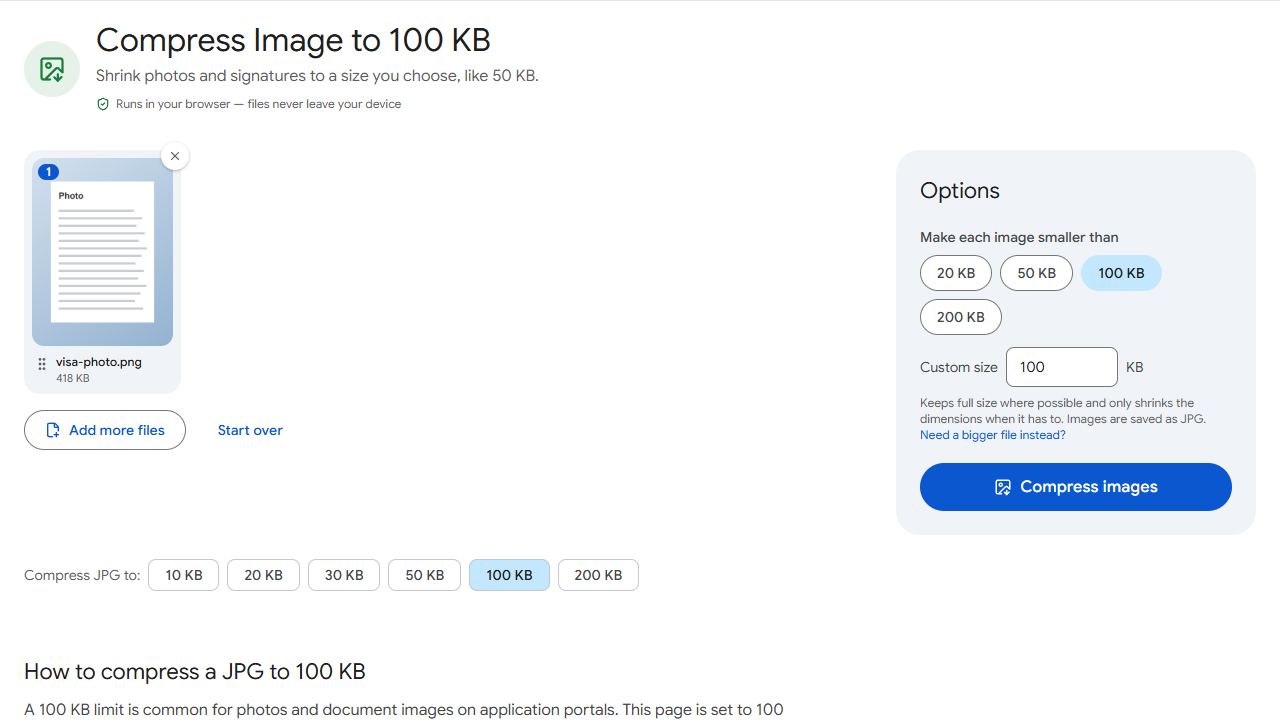
PDFCraftly does not resize images to exact pixel dimensions or change the background colour, so do the cropping and sizing in your photo app. What it does do is report the final pixel dimensions after compression, so you can confirm the file is still 200 × 200 before you upload.
Step 2: fit between 5 KB and 100 KB
- Open Compress JPG to 100 KB, or Compress JPG and enter 100 under Target file size.
- Add the 200 × 200 photo and click Compress images.
- Read the result. A 200 × 200 JPG is usually already well under 100 KB, in which case it says "Already under 100 KB" and the file is left untouched. If it was larger, you get the size and a note of any change to the dimensions.
- Download and upload the file to the eVisa form.
The compressor lowers JPEG quality before it touches the dimensions, and results are checked against 1 KB = 1,000 bytes, so a file reported as under 100 KB is under the limit however the portal counts. Everything runs in your browser; the photo is not uploaded anywhere.
Under 5 KB? A very plain 200 × 200 photo can come out smaller than the 5 KB minimum. Open Increase JPG Size, enter 5 as the minimum and it adds invisible padding to reach that size without changing the picture.
If the result says the picture had to be resized to fit under 100 KB, your source was much larger than 200 × 200. Go back to Step 1 and set the dimensions first; a true 200 × 200 image never needs resizing to reach 100 KB.
If the studio gave you a PDF or a printed sheet
Photo studios in the Gulf often email a PDF sheet of passport photos. The eVisa form needs a single image, so convert first: open PDF to JPG, save the page as a JPG, then crop one photo to a square and size it to 200 × 200 as in Step 1. A phone photo of a printed passport photo also works if it is taken straight on, in daylight, with no glare; crop tightly to the photo's edges before sizing.
Other Saudi portals and your supporting documents
Residents applying through Absher, Muqeem or Enjaz, or uploading a passport copy, hotel booking or return ticket elsewhere, will meet different limits on each form. Those portals do not publish a single public specification, so check the limit stated next to the upload box and use Compress PDF with Target file size to hit it exactly; presets such as Compress PDF to 1 MB and Compress PDF to 2 MB cover the usual document limits. For a scan that is too big because it has extra pages, remove them with Extract Pages before compressing. For more on size limits in general, see how to compress a PDF and how to reduce a photo to a size in KB.
Common problems and fixes
- The portal rejects the photo even though it is under 100 KB.
- Check the pixel dimensions. The form wants exactly 200 × 200; a 600 × 600 file that happens to be under 100 KB is still wrong. Resize in your photo app, then run it through Compress JPG again to confirm the size.
- The result says the picture was resized to fit.
- That means the source was far larger than 200 × 200. Set the dimensions to 200 × 200 first; at that size the file is almost always under 100 KB without any resizing.
- The photo is below the 5 KB minimum.
- Use Increase JPG Size with 5 as the minimum. It adds invisible padding and leaves the picture itself unchanged.
- The background is not pure white.
- No file tool can fix that without altering the image, which can cause a mismatch with your passport. Retake the photo against a white wall in even light, or ask a photo studio for a white-background digital copy, then crop and compress it.
- I only have the photo inside a PDF from the studio.
- Save the page as an image with PDF to JPG, crop one photo to a square and size it to 200 × 200 in your photo app, then compress to under 100 KB.
Frequently asked questions
200 × 200 pixels, with a file size between 5 KB and 100 KB, on a plain white background, according to the official photo specifications page. Check the form when you apply in case the specification changes.
No. It does not set exact pixel dimensions. Crop and size the photo in your phone's gallery app or an image editor, then use Compress JPG to make sure the file size fits; the result reports the final dimensions so you can confirm them.
No. Compression runs in your browser, on your device. Nothing is sent to PDFCraftly.
Those are different services with their own forms. Check the photo and file size limits stated on the form you are using rather than reusing this specification.
A JPG below 5 KB at 200 × 200 is so heavily compressed that facial features are hard to verify. If your file is that small, increase it slightly rather than re-saving at lower quality.