How to Convert a Photo to PDF on iPhone
By Bishal Neupane · · 2 min read
Forms, receipts and IDs often need to be sent as PDFs, but your iPhone saves photos as images. Converting takes about a minute in Safari.
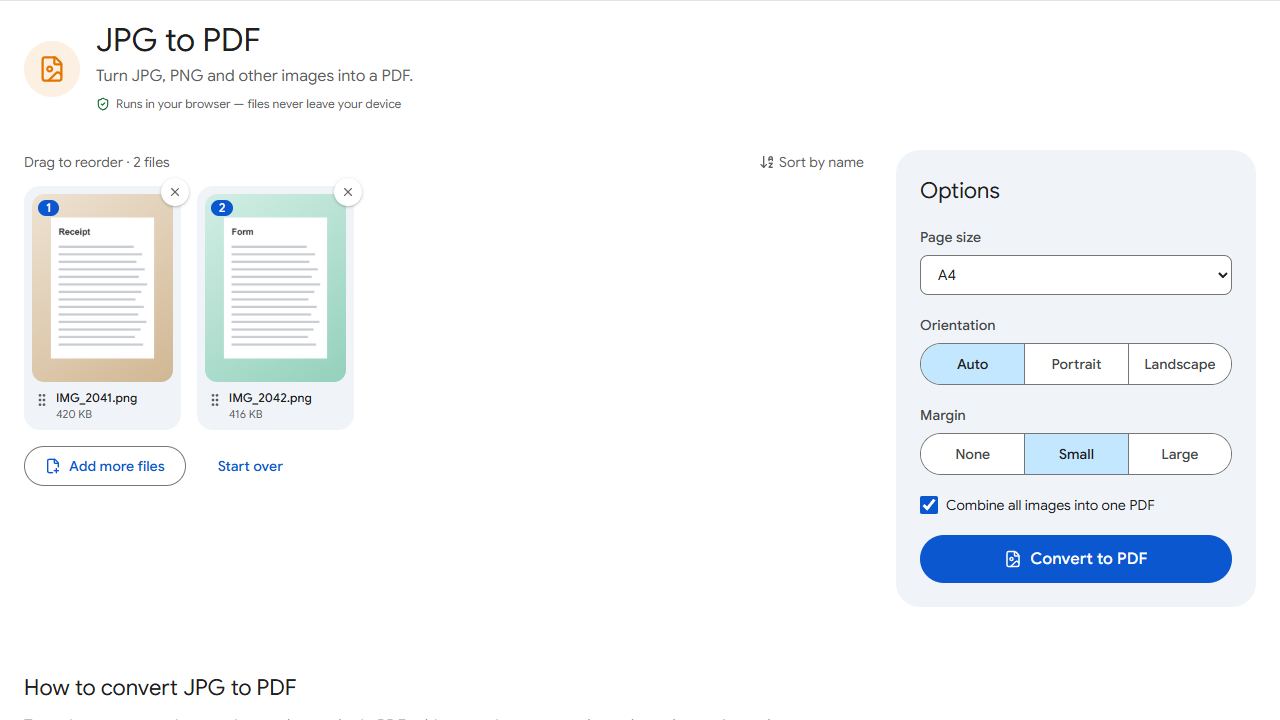
Convert photos in Safari
- Open JPG to PDF in Safari.
- Tap the upload area, choose Photo Library and select one or more photos.
- Choose the page size: A4 in most countries, US Letter in the US and Canada, or Same as image to keep the photo's own shape.
- Pick a margin and leave Combine all images into one PDF ticked if you want one file.
- Tap Convert to PDF and download. The PDF appears in Downloads in the Files app.
If a photo isn't accepted
iPhones save photos in HEIC format by default. If a photo won't add, see the HEIC fix in how to convert images to PDF, or switch Settings → Camera → Formats to Most Compatible for future photos.
The built-in way
iOS can also make a PDF without a website: save the photo to the Files app, press and hold it and choose Create PDF (under Quick Actions on some iOS versions). It's quick, but you don't get page sizes or margins, and the pages match the photo's size.
Scanning paper? Use the camera directly
For documents still on paper, Scan to PDF captures each page with the camera and builds the PDF as you go. Document mode boosts contrast so text is easier to read. To add the result to other PDFs, use Merge PDF.
Common problems and fixes
- The page in the PDF is sideways.
- JPG to PDF follows the orientation saved in the photo. If it's still wrong, the photo was taken at an angle; fix it with Rotate PDF.
- The PDF is very large.
- Each iPhone photo is several megabytes, and the PDF is roughly the sum of the photos. Shrink it with Compress PDF; Recommended is plenty for documents.
- There's a white border around the photo.
- Set the margin to None, or choose Same as image as the page size.
- I can't find the PDF.
- Open the Files app, tap Browse, then Downloads.
Frequently asked questions
Yes. Select them all and leave Combine all images into one PDF ticked; each photo becomes one page, in the order shown.
Photos are placed into the PDF at their original resolution, so they look the same.
No. JPG to PDF works in Safari and other iPhone browsers.
No. They're converted on your iPhone and never leave it.