IRCC File Size Limit: How to Compress a PDF Under 4 MB for Your Upload
By Bishal Neupane · · 6 min read
Immigration, Refugees and Citizenship Canada (IRCC) refuses any upload that is over the limit for your account, and each document field takes only one file. A scanned passport, six months of bank statements or a stack of pay stubs is usually well over 4 MB, so most applicants have to shrink or combine files before they can submit. Here are the limits and formats as IRCC's help centre lists them, with the source for each number, and the steps to get a file through.
IRCC file size limits by account type
IRCC's help centre publishes the limit for each online account in Is there a file size limit for documents I upload to my account? (page dated 3 November 2026). The limit is per file:
- IRCC secure account: 4 MB
- Permanent Residence Portal: 4 MB
- Online citizenship application: 4 MB
- Asylum portal: 4 MB
- IRCC Portal (including the new version): 5 MB
A second help centre answer, My documents are too large to upload, adds that "depending on what you're applying for, the limit can be as low as 2 MB". It does not say which application that is, so read the limit shown beside the upload field before you compress. IRCC's page on submitting documents it requested repeats the rule in plain terms: "Your file must be less than 4 MB or you won't be able to upload it."
Not sure which account you are in? Aim for under 4 MB. A file that size is accepted by every account in IRCC's table.
Accepted file formats
Formats also depend on the account. IRCC lists them in What file formats can I upload to my account?:
- IRCC secure account: .jpg, .png, .doc, .tiff, .pdf
- IRCC Portal: .jpg, .png, .doc, .docx, .tiff, .pdf
- Online citizenship application: .jpg, .jpeg, .png, .tif, .tiff, .pdf
- Asylum portal: .jpg, .png, .tiff, .doc, .docx, .pdf
- Permanent Residence Portal: .pdf for application forms and supporting documents, plus .jpg, .jpeg, .doc, .docx, .png
PDF is the only format on every list, and it is the one that holds several pages in a single file. That makes it the safe choice for anything longer than one page.
One file per field: combine first
IRCC is strict about this. Its answer on adding multiple files to one field says: "You can only upload 1 file per field. If you try to upload multiple files in the same field, only 1 (the last one you upload) will be saved." If the Proof of funds field needs six bank statements, they have to go in as one PDF, and that one PDF has to be under the limit.
- Gather the files for one field. Scan paper pages with Scan to PDF, which uses your phone camera, or turn photos into a PDF with JPG to PDF.
- Open Merge PDF, add the files, put them in the order an officer would read them, and download the combined PDF.
- Check the size of the result. If it is over the limit for your account, compress it as described in the next section.
Merge first and compress second. Compressing the combined file lets you aim at the one number that matters, the limit for that field.
Compress a PDF under 4 MB for IRCC
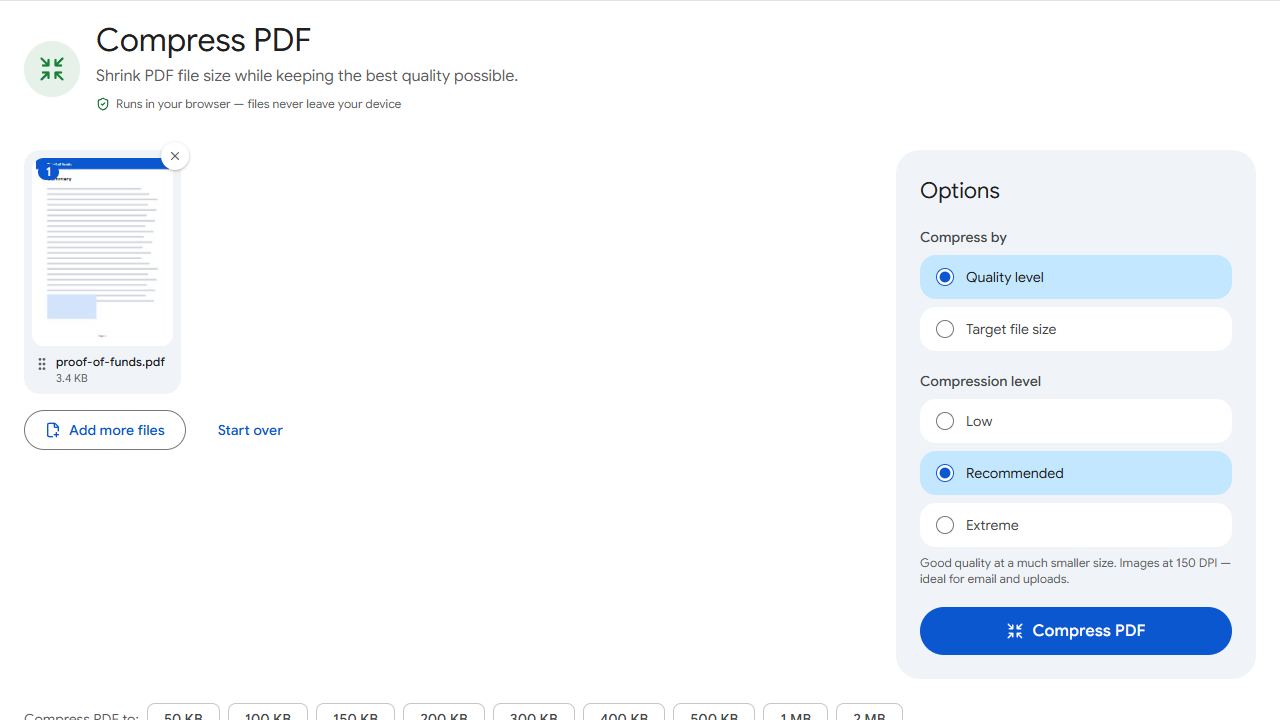
- Open Compress PDF and add your file.
- Choose Target file size and type the limit. For a 4 MB account type 4000 KB; type a slightly lower number, such as 3900 KB, if you want a margin, since IRCC says the file must be less than 4 MB.
- Click Compress PDF. The result reports the final size, so you know whether it fits before you go back to IRCC.
- Download the file and upload it to the field.
The compressor re-encodes the images inside the PDF, lowering their quality first and their resolution only if that is not enough. Real text, such as a bank statement downloaded from online banking, is left as text and stays sharp. PDFCraftly counts 1 KB as 1,000 bytes, so 4000 KB is 4,000,000 bytes. That is the stricter reading of 4 MB, and a file that fits here also fits if IRCC counts in units of 1,024.
Nothing is uploaded while you do this. IRCC's own help page warns that it "can't guarantee the security" of third-party websites for combining PDFs and tells you to read their privacy policy. PDFCraftly's tools run in your browser, so your passport and bank statements stay on your device.
If the field in your application shows 2 MB, use Compress PDF to 2 MB instead. For more on the quality levels, see how to compress a PDF.
Keep IRCC scans readable at a small size
An officer has to be able to read every stamp and number. IRCC's own tips for reducing file size are a good guide to what it considers acceptable:
- Scan at a lower resolution. IRCC suggests 96 DPI or 150 DPI; 150 DPI keeps small print on bank statements legible.
- Crop away the empty space around the document. Trim margins on an existing PDF with Crop PDF.
- Leave out pages nobody asked for, such as blank backs and advertising pages in statements. Remove Pages deletes them before you compress.
- Turn sideways pages upright with Rotate PDF so the officer does not have to.
- Open the compressed file and zoom in on the smallest text before you upload it. If it is hard to read, rescan in better light and compress again.
Splitting a large file into parts does not help on IRCC, because each field keeps only one file. Reduce the pages or the quality until the single file fits.
Common problems and fixes
- IRCC still says the file is too large after compressing.
- Check the limit beside that field; IRCC says it can be as low as 2 MB for some applications. Compress again in Compress PDF with that number typed under Target file size, and read the final size in the result before you upload.
- I uploaded two files to one field and only one shows.
- IRCC keeps only the last file uploaded to a field. Combine the documents with Merge PDF, compress the merged file if needed, and upload it again.
- The compressed scan is too blurry to read.
- Remove pages that are not needed with Remove Pages and compress again, so the remaining pages get more of the 4 MB. If it is still unclear, rescan in good light with the page filling the frame.
- My PDF asks for a password.
- IRCC's help centre does not list rules for password-protected files, but an officer cannot read a file that will not open. If you know the password, Unlock PDF removes it and gives you an ordinary copy to upload.
- My document is a Word file or a photo and the field rejects it.
- Accepted formats differ by account, and PDF is on every list. Save the Word file as a PDF, or convert photos with JPG to PDF, then compress the PDF to the limit.
Frequently asked questions
IRCC's help centre lists 4 MB per file for the IRCC secure account, the Permanent Residence Portal, the online citizenship application and the asylum portal, and 5 MB for the IRCC Portal. It adds that the limit can be as low as 2 MB for some applications, so check the limit shown on your upload page.
No. IRCC states that you can upload only 1 file per field and that only the last one uploaded is saved. Combine the documents into one PDF with Merge PDF first.
In Compress PDF, choose Target file size and type 4000 KB, or a little less for a margin. The tool counts 1 KB as 1,000 bytes and reports the final size when it finishes.
The help centre pages on file size, formats and combining files do not give file-name rules. Use a short, plain name such as proof-of-funds.pdf, and follow any error message the upload page shows.
The files are not uploaded. PDFCraftly compresses and merges in your browser, on your own device, which matters because IRCC warns that it cannot guarantee the security of third-party sites.