HEC Degree Attestation: Upload CNIC and Degree Scans as PDF
By Bishal Neupane · · 6 min read
HEC's degree attestation is now fully online and paperless: you upload scans on the e-Services portal (eservices.hec.gov.pk), pay Rs 3,000 per document, and the university verifies your record before HEC issues an e-Attestation Certificate. Blurred, incomplete or wrongly uploaded scans come back as a revision request and cost you weeks. This guide covers what HEC asks for and how to produce clean, correctly sized PDFs from a phone.
What HEC asks you to upload
HEC's degree attestation page asks for clear, legible scanned copies of your CNIC (front and back) and each degree, transcript, provisional certificate or HEC equivalence letter you want attested. Anything else, such as a PMDC or PNMC registration card for medical and nursing degrees, goes under the Other Documents tab. The page's closing note says to upload educational documents as a PDF file, with a passport-size picture on a plain blue or white background.
The fee is Rs 3,000 per document and is not refunded, adjusted or transferred if you select the wrong document, so choose carefully. Photocopies are no longer attested, and documents with overwriting, erasures or alterations are refused; get a corrected original from your university first.
HEC does not publish a kilobyte limit for attestation uploads. Its user manual for the new system says only that documents must be in "the format and size accepted by the portal" and, for upload errors, to check file format, file size and clarity. An older e-Services profile manual allows a profile picture of up to 15 MB in PNG or JPG. Treat the limit shown next to each upload field on the day you apply as the rule, and keep every file comfortably under it.
Scan each document into its own PDF
- Lay the degree flat on a dark, plain surface in daylight. Open Scan to PDF on your phone, photograph the page straight on, and save the PDF. If the degree is printed on both sides, scan both sides into the same PDF.
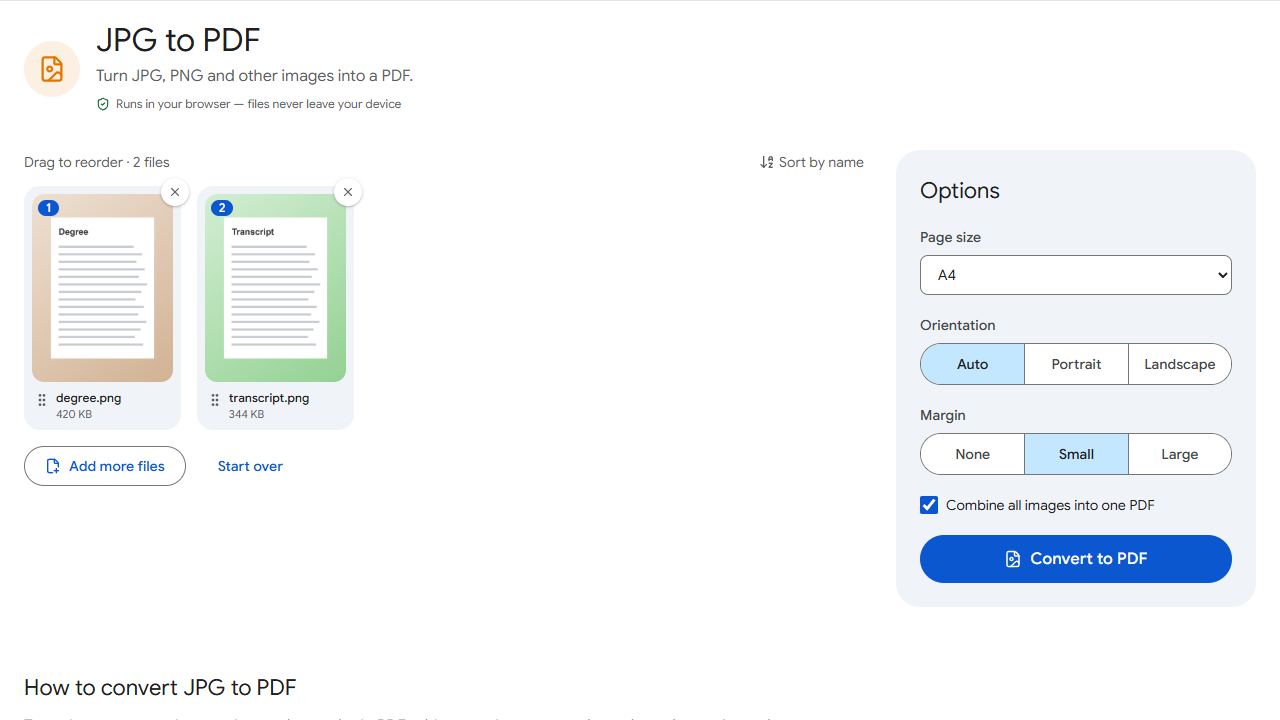
- If you already have photos of the documents, open JPG to PDF instead, add the photos for one document, choose A4 and convert. Several photos become one PDF by default, which is exactly what you want for the two sides of a CNIC.
- Name each file after the document type the portal lists, such as
cnic.pdf,bsc-degree.pdfandbsc-transcript.pdf, so you upload each against the right heading.
One PDF per document type is the rule of thumb. If a transcript runs to several pages that you scanned separately, join them with Merge PDF before uploading; if a scan picked up a page you do not need, drop it with Remove Pages. Everything runs in your browser, so your CNIC and degree never leave your phone or computer.
Keep each PDF under the portal's limit
A phone scan of an A4 degree is typically 2 MB to 5 MB per page. If the upload field shows a smaller limit, shrink the file to it rather than guessing:
- Open Compress PDF and choose Target file size, or use a preset such as Compress PDF to 1 MB or Compress PDF to 2 MB if that matches the limit on the form.
- Add the PDF and click Compress PDF. The result reports the final size and whether it fits, for example "842 KB — fits under 1 MB".
- Open the downloaded PDF and zoom in on the registration number, grades and seals. If they are readable, upload it.
The compressor reduces image quality first and resolution only if it must, so it keeps the sharpest version that fits. If a file still will not fit, the usual cause is a wide border of table around the page: trim it with Crop PDF and compress again. A colour scan is better than black and white for stamps and holograms, and target-size compression keeps colour within the limit.
Do not compress further than the form requires. HEC returns applications whose scans are not legible, and a 150 KB degree scan rarely is.
Your passport-size photo
HEC wants a passport-size picture on a plain blue or white background. Stand in front of a plain wall in even light, have someone take a head-and-shoulders photo, and crop it to passport proportions (about 3:4) in your phone's Gallery or Photos app. PDFCraftly does not change backgrounds or resize to exact pixel dimensions, so get those right in the photo itself.
If the portal shows a size limit for the picture, run it through Compress JPG with that number as the Target file size; Compress JPG to 100 KB is a sensible choice when no limit is shown and your photo is several megabytes. The result shows the final size and pixel dimensions. For the same steps with other photo limits, see how to reduce a photo to 20, 50 or 100 KB.
Avoid the common revision requests
- Your name, father's name and date of birth must be identical on the CNIC and every educational document; HEC checks personal details against NADRA before anything else.
- Upload both sides of the CNIC and both sides of any document that has text or stamps on the back.
- Upload each file against the correct document type; a transcript under the Degree heading is a deficiency.
- For MS, MPhil or equivalent programmes launched after 7 November 2013, an HEC-issued NOC is mandatory; for a PhD, your name must appear in the PhD Country Directory.
- After paying through 1-Link, click Verify Payment; the application is not submitted until the fee shows as verified.
After submission, watch the Track Application and Revision Requested sections of your dashboard. If HEC asks for a better scan, rescan that one document with the steps above and resubmit through View/Edit.
Common problems and fixes
- The HEC portal rejects my upload because of the file size.
- Read the limit shown next to that upload field, then compress the PDF to it with Compress PDF and Target file size. The tool reports the final size so you can confirm it fits before uploading.
- My CNIC front and back are two separate photos.
- Add both to JPG to PDF and convert; they become one two-page PDF. If you already have two PDFs, join them with Merge PDF.
- HEC sent a revision request saying the degree scan is not legible.
- Rescan with Scan to PDF in daylight on a dark surface, make sure the whole page including seals is inside the frame, and compress only as far as the form requires. Then resubmit through View/Edit on your dashboard.
- The portal wants a PDF but my university emailed JPG images.
- Convert them with JPG to PDF, one PDF per document type, and name each file after the heading it belongs under.
- I cannot tell which file is which in the upload list.
- Rename files before uploading:
cnic.pdf,msc-degree.pdf,msc-transcript.pdf. The portal shows the file name next to each document type.
Frequently asked questions
HEC's degree attestation page asks for clear, legible scans in PDF, plus a passport-size picture on a plain blue or white background. Check the format and size shown on each upload field when you apply.
HEC does not publish a fixed kilobyte limit for attestation uploads; its user manual only says files must be in the format and size the portal accepts. Use the limit displayed next to the upload box and compress to that number.
Rs 3,000 per document (degree, transcript, provisional certificate or equivalence letter), paid through 1-Link. The fee is not refunded or transferred if you select the wrong document.
No. The online system attests against scans of the original document and issues an e-Attestation Certificate; attestation of photocopies is no longer offered.
No. Scanning, converting, merging and compressing all run in your browser, on your device. The only place your documents go is HEC's portal when you upload them there.