How to Protect a PDF from Editing and Copying
By Bishal Neupane · · 4 min read
Plenty of people searching how to protect a PDF from editing don't actually want a password to open it. They want the file to be readable but hard to change or copy from: a price list, a quotation, a CV. That is a different job from locking the file away, and it comes with limits you should know before you rely on it.
The three permissions you can control
- Printing: when switched off, the Print command is blocked in apps that respect it.
- Copying text and images: stops people selecting text or pulling images out of the document.
- Editing: stops changes to the content, such as altering text or rearranging pages.
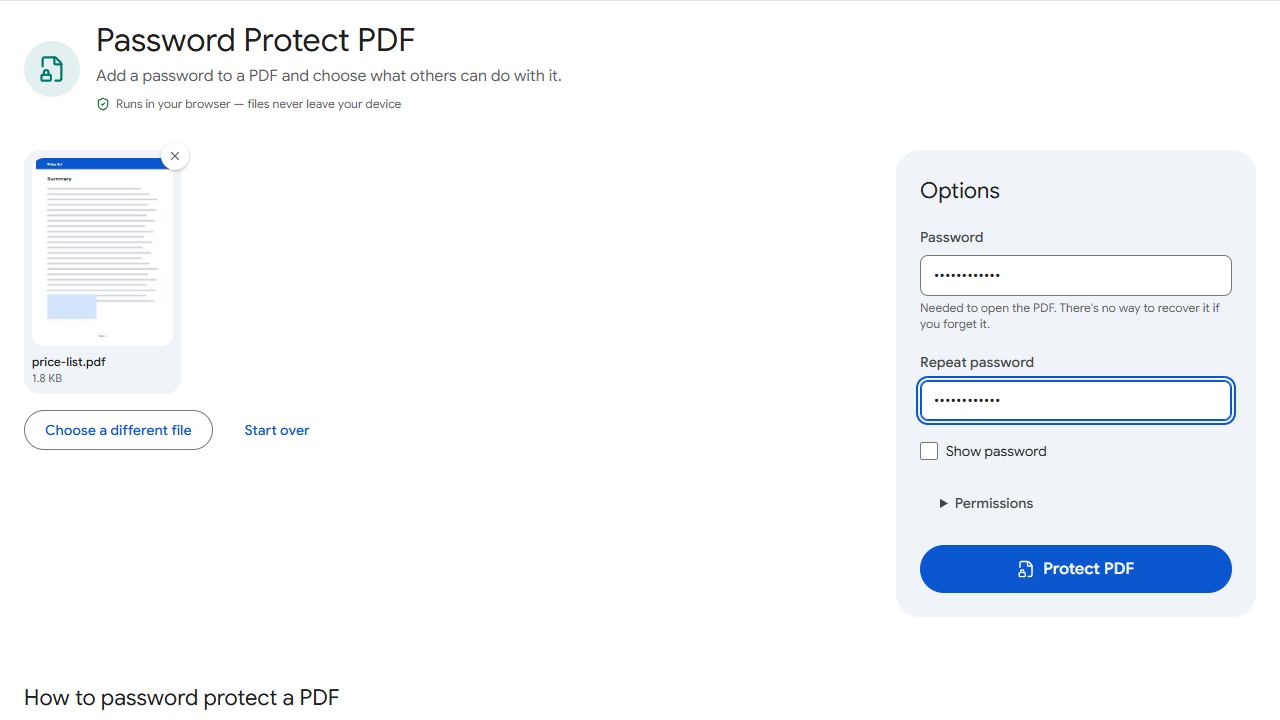
In Protect PDF these are the three checkboxes under Permissions, labelled allow printing, allow copying text and images, and allow editing. Untick the ones you want blocked.
How to set them
- Open Protect PDF and add the file.
- Type a password and repeat it. The tool requires an open password, even if what you really want is to limit editing.
- Open Permissions and untick the actions you want to block.
- Optionally enter an owner password, which lets you change the permissions later. If you leave it empty, the permissions are locked with a random password.
- Click Protect PDF and download the file. It's AES-256 encrypted in your browser and nothing is uploaded.
The password you choose is the one people type to open the file, so you will need to share it with the readers. If that is not what you wanted, see the last section.
Why permissions alone do not make a PDF secure
Permissions are a request, not a lock. A PDF app is expected to honour them, but some apps ignore them, which is why the tool itself says only the open password truly keeps people out. Anyone who can read a page on screen can also retype it, photograph it or take a screenshot, and no setting prevents that.
Think of permissions as a way to discourage casual copying and accidental edits, not as protection for something confidential. If a document would cause harm in the wrong hands, rely on the open password and share it carefully.
Which setting to use when
- Confidential document: open password, and send it by a different route from the file.
- Public document you don't want edited by accident: untick editing, and keep a clean master copy for yourself.
- Quotation or price list: untick editing and copying, and add a watermark with the date or the client's name.
- A form or an agreement: permissions will not prove who signed or when, so use them only to discourage casual changes.
Check the result before you send it
Open the downloaded file in the viewer your recipients are likely to use and try the blocked action. Enter the password, then try to print or select text. Different apps handle blocked permissions differently, and a quick test shows what the reader will really see.
If you need to change the permissions on a file whose password you know, Unlock PDF saves a copy without protection, and you can protect it again with new settings. Without the password, you can only lift permissions, not an open password.
Common problems and fixes
- I only want to block editing, but the tool asks for a password.
- An open password is required. Choose one and share it with your readers, or accept that the file will need it to be opened. If readers must open it freely, permissions alone are not available here.
- People can still select text in my protected PDF.
- Check that Allow copying text and images was unticked before you protected it, and test in a few viewers. Some apps ignore permissions entirely.
- I need to change the permissions but didn't set an owner password.
- Permissions locked with a random owner password can't be changed. Start again from your original file and protect it with the settings you want.
- The tool says the PDF is already protected.
- Remove the existing password with Unlock PDF first, then protect the unlocked copy.
Frequently asked questions
Some PDF apps ignore permissions, so yes. Only the open password truly keeps people out. Treat permissions as a deterrent, not as security.
No. Anything visible on screen can be photographed or captured. A watermark helps discourage sharing.
It lets you change the permissions later. If you leave it empty, the tool locks the permissions with a random password.
No. The PDF is encrypted in your browser with AES-256, and neither the file nor the password leaves your device.