How to Password Protect a PDF on Mac
By Bishal Neupane · · 3 min read
On a Mac you already have a few ways to put a password on a PDF. The browser route is worth knowing because it is the same on any Mac with any browser, it works for a quick one-off, and it lets you decide in the same step whether the file can be printed, copied or edited.
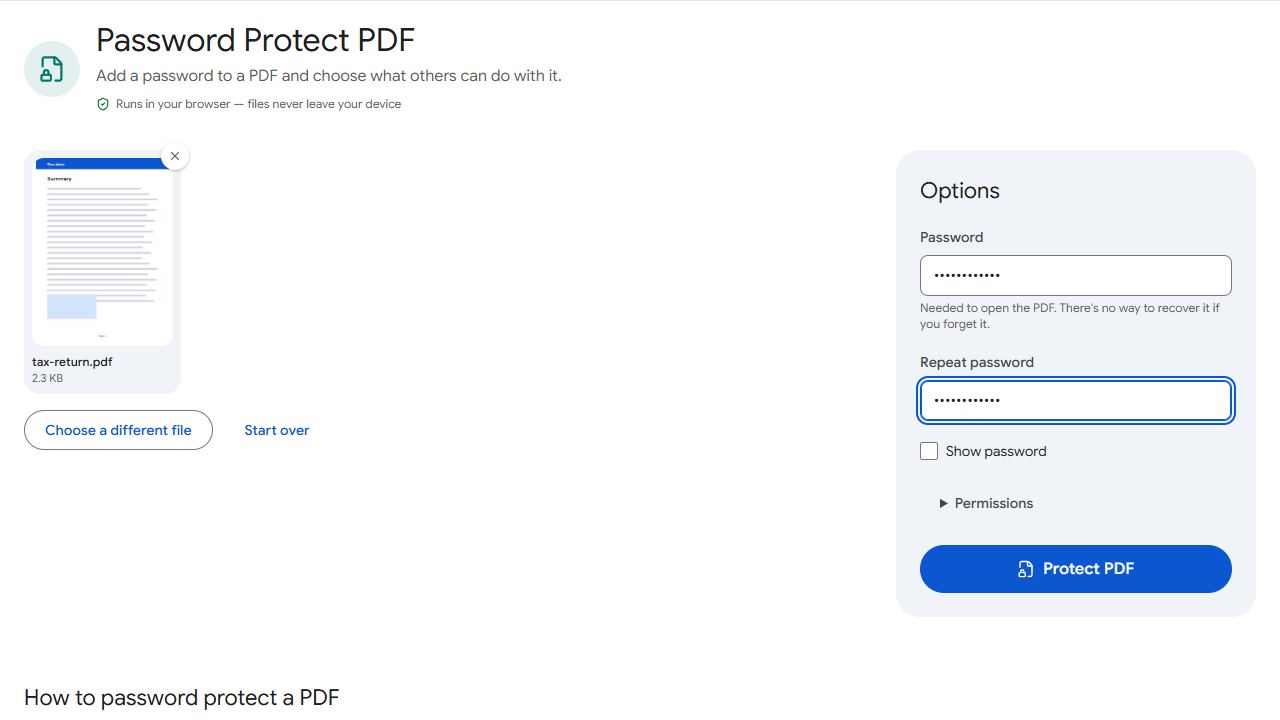
Password protect a PDF on Mac in your browser
- Open Protect PDF in Safari, Chrome or Firefox.
- Drag the PDF from Finder onto the page, or click the upload area and choose it.
- Type a password twice.
- Optionally open Permissions and untick printing, copying or editing (more on that below).
- Click Protect PDF and download the file.
The result is saved as the original name plus _protected, normally in your Downloads folder. Safari and Chrome both use Downloads unless you changed the setting. Encryption is AES-256 and happens inside the browser, so the PDF and the password never leave your Mac.
Preview can do it too
On recent versions of macOS, Preview, the app that opens PDFs on a Mac, has an Encrypt option in its File > Export dialog. That is handy when you already have the file open. If you want to choose exactly what the recipient may do with the file, or you work across several computers and browsers, the browser tool gives the same steps everywhere.
Whichever method you use, open the protected file afterwards. It should ask for the password before showing the first page.
Setting printing, copying and editing limits
The Permissions section lets you switch off printing, copying text and images, and editing. The owner password and what happens when you leave it empty are explained in how to protect a PDF from editing and copying, which also covers why permissions are only a deterrent. The general guide on how to password protect a PDF covers the difference between the open password and permissions.
Sharing the file from your Mac
Attach the protected PDF to an email, drop it into a chat or a shared folder, as you would any file. Send the password separately, for example by text message. For sensitive documents such as ID copies, a watermark stating who the copy is for adds a second layer.
Pick a password that is easy to say aloud but hard to guess, such as a few unrelated words. Write it down somewhere safe, or keep an unprotected original: a forgotten password cannot be recovered, and nobody can reset it for you.
If the tool refuses the file, or you use another device
A PDF that already has a password is handled in how to protect a PDF from editing and copying, which explains the fix once for every device. The phone versions are in the iPhone guide and the Android guide.
Common problems and fixes
- I can't find the downloaded file.
- Check the Downloads folder in Finder, or the Downloads button in your browser's toolbar. The file name ends in _protected.
- I set permissions but can't change them later.
- That depends on the owner password. See how to protect a PDF from editing and copying for what happens when it is empty and what to do.
- A recipient says printing still works.
- Some PDF apps ignore permissions. Only the open password reliably keeps people out, so use one if the document is sensitive.
Frequently asked questions
On recent versions of macOS, Preview has an Encrypt option in File > Export and is fine if you already have the file open. The browser tool works the same in any browser and lets you set print, copy and edit permissions in the same step.
Safari, Chrome, Firefox and other current browsers on macOS.
Yes, if you know it. Unlock PDF saves a copy without the password.