How to Split a PDF: 5 Ways, and When to Use Each
By Bishal Neupane · · 2 min read
"Split a PDF" can mean very different things: pull out one chapter, break a big file into email-sized parts, or separate a batch of invoices. Choosing the right method saves a lot of clicking.
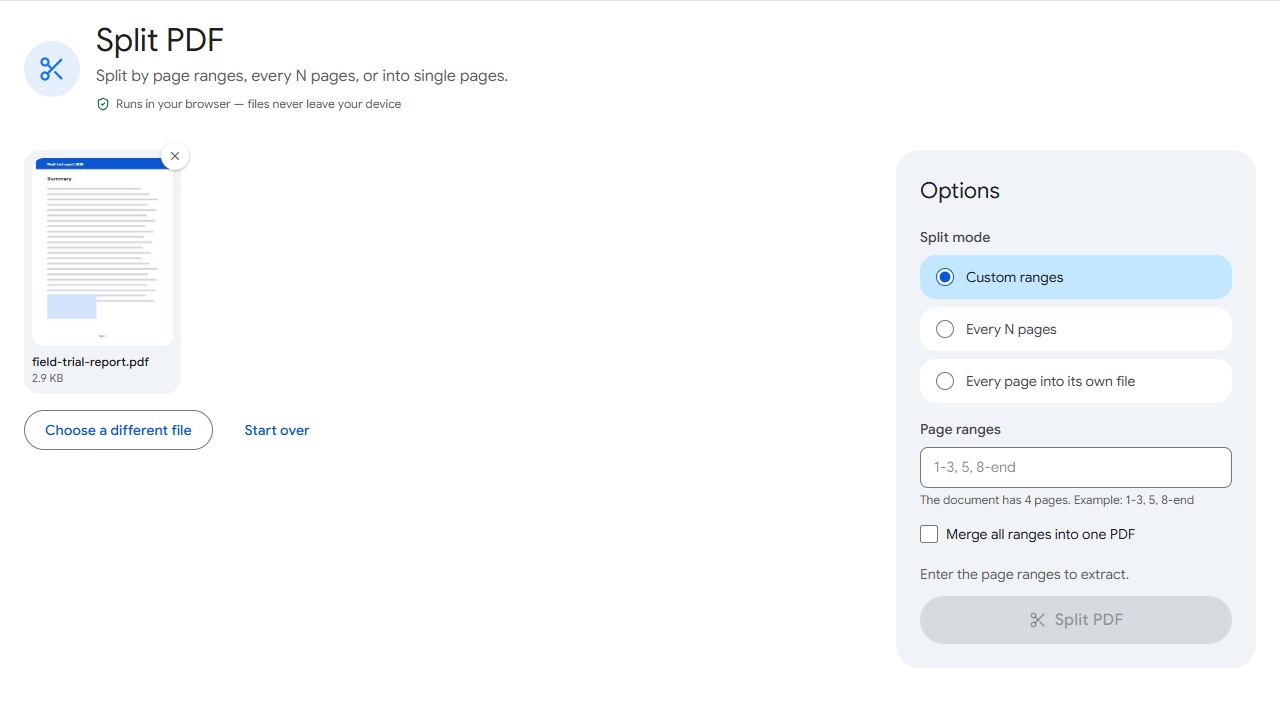
1. By page ranges — you know exactly which pages go where
Use Split PDF with custom ranges such as 1-3, 4-10, 11-20. Each range becomes its own file. The same tool can also split every N pages (for example, every 2 pages for two-page forms) or put every page in its own file.
2. Pick pages visually — you need a few specific pages
Extract Pages shows thumbnails; click the pages you want and save them as one new PDF, or tick the option to save each as a separate file.
3. By chapter — the PDF has bookmarks
Books, manuals and reports often have an outline (bookmarks). Split by Bookmarks creates one file per chapter, named after each bookmark. Choose level 2 to split at sub-sections too.
4. By file size — for email and upload limits
Email providers often cap attachments at 20–25 MB. Split by Size breaks the document into parts that each stay under the limit you set, without cutting any page in half.
5. By text — batches of invoices, statements or forms
If a scanner produced one long PDF containing many separate documents, Split by Text starts a new file on every page containing a phrase such as "Invoice number" or "Statement date". The PDF needs a text layer — run OCR first on scans.
Bonus: splitting pages themselves
Scanned a book two pages at a time? Split in Half cuts each page down the middle, so one scan becomes two proper pages.
Common problems and fixes
- "Invalid page range".
- Use numbers that exist in the document and separate ranges with commas, e.g.
1-3, 5, 8-10. Ranges must go from low to high. - Split by Bookmarks finds nothing.
- The PDF has no bookmarks, or they're at a different level. Try level 1, or add bookmarks first with Bookmarks.
- Split by Text doesn't split where expected.
- The PDF may be a scan without a text layer — run OCR PDF first. Also check the phrase appears exactly once per section.
- I get dozens of files I didn't want.
- "Every page into its own file" creates one file per page. To keep specific pages together, use custom ranges or Extract Pages.
Frequently asked questions
No. Pages are copied as they are into the new files, so text and images keep their original quality.
If there's more than one file, they download together as a single ZIP. Your computer or phone can open ZIP files without extra software.
Remove the password with Unlock PDF first (you'll need to know it), then split the unlocked copy.
Split PDF creates several files from ranges or intervals. Extract Pages lets you click specific pages and save them together as one new PDF.