How to Split a PDF Into Two Parts: 3 Ways
By Bishal Neupane · · 5 min read
"Split a PDF into two" means one of three different jobs: cutting the document at a page number, cutting every page down the middle, or dividing a heavy file so it fits an email. They use different tools, and picking the wrong one is the usual reason the result looks off.
Quick answer: which tool for which job
- Two files, cut at a page number (say pages 1-5 and 6-end): Split PDF with custom ranges.
- Every page is really two pages side by side (a book scan, an A3 sheet): Split in Half.
- One file is too big to send: Split by Size, with a limit in MB.
The rest of this guide takes each case in turn. For other ways to split, such as by chapter or by phrase, see how to split a PDF: 5 ways.
Split a PDF into two files at a page number
This is the case most people mean. You have a 12-page PDF and want pages 1-5 in one file and 6-12 in another.
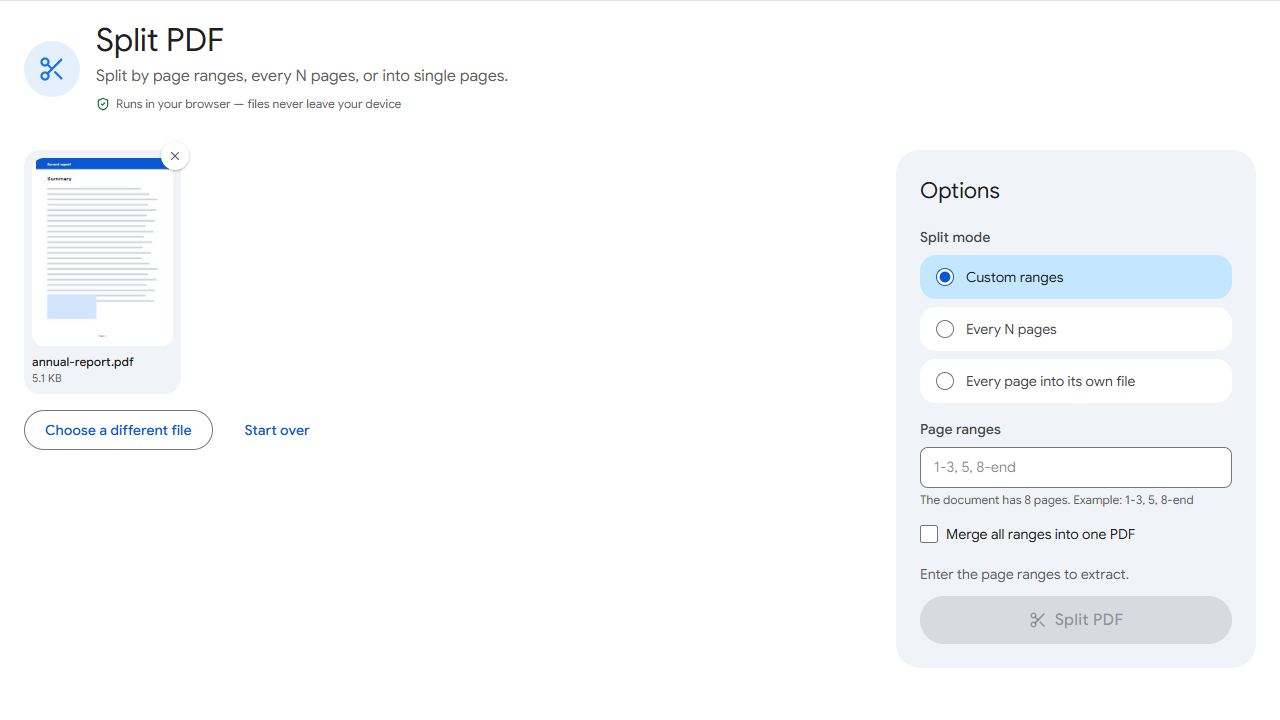
- Open Split PDF and add the file. The page count appears under the ranges box.
- Leave the mode on Custom ranges and type
1-5, 6-end. The wordendstands for the last page, so you don't have to count. - Click Split PDF. You get two files, named after the original with the page numbers added, such as
report_pages-1-5.pdf. Two files download together as a ZIP.
Page numbers are positions in the file, where 1 is the first page, even if the numbers printed on the pages differ. To cut at the exact middle of a 20-page document, use 1-10, 11-end.
Don't know where to cut? Open the PDF in your viewer, note the first page of the second part, and type that number. A range like 6-end always runs to the last page.
Split a double-page scan into left and right pages
If each page of your PDF shows an open book, or an A3 sheet holding two A4 pages, you don't want two files. You want twice as many pages. Split in Half cuts every page into two halves and keeps them in one PDF.
- Add the PDF to Split in Half.
- Choose Left | Right for pages side by side, or Top / Bottom for pages stacked.
- Click Split pages. A 10-page scan of spreads becomes a 20-page document, left half first.
The tool cuts every page, so a single-page cover gets cut too. If your scan has one, split it off first with Split PDF (for example 1, 2-end), run Split in Half on the part that has spreads, and join the pieces again with Merge PDF. The full walkthrough, including cropping the spine, is in how to split scanned book pages in half.
Split a PDF in two to fit an email limit
When the problem is size rather than content, Split by Size divides the document into parts that each stay under a limit you set. It starts a new part whenever the next page would push the file over, and it never cuts a page itself.
- Add the PDF. The tool shows how big your file is.
- Enter the maximum size per file in MB. For two parts of a 20 MB file, try a little over half, such as 11.
- Click Split PDF and download the parts.
You may get two parts or three, depending on how heavy individual pages are. A single page larger than your limit stays whole in a part of its own, so very large scans can't always be divided evenly.
Splitting doesn't make the content smaller. If the recipient can take one attachment, Compress PDF is often simpler. More options are in how to send a large PDF by email.
Which method should you pick?
- You know the page where the document should be cut: Split PDF with ranges.
- You want only a few pages, not the whole rest: Extract Pages, where you click the pages you need.
- The file looks like pages printed two per sheet: Split in Half.
- A size limit is the real problem: Split by Size, or compress it first.
- You need the two parts back in one file later: Merge PDF.
All of these run in your browser, so the document stays on your device, and your original file is never changed.
Common problems and fixes
- "Page 12 doesn't exist (the document has 10 pages)."
- A range names a page beyond the end of the file. Check the page count shown under the ranges box, or use
endfor the last page, as in1-5, 6-end. - I got one file with twice the pages instead of two files.
- That's what Split in Half does: it cuts each page into two, keeping them in one PDF. To get two separate files, use Split PDF with two ranges such as
1-5, 6-end. - Split by Size gave me three parts, not two.
- The limit was too low for the page sizes. Raise the maximum size slightly and run it again; your original file is not changed, so you can retry as often as you like.
- The cut ran through the middle of the text on a book scan.
- The spine wasn't centred when scanned, and Split in Half cuts at the exact middle. Trim the scan first with Crop PDF so the spine sits in the centre, then split.
- The second file starts on the wrong page.
- Ranges count positions in the file, not the numbers printed on the pages. If a cover or contents page comes first, the page you see as 5 may be file page 7.
Frequently asked questions
Divide the page count by two and use two ranges. For a 20-page document, type 1-10, 11-end in Split PDF. For an odd count such as 15, one part will have one more page.
The tools are free and run in your browser, so the PDF is processed on your device and not uploaded.
No. Pages are copied into the new files as they are. Split in Half crops pages instead of turning them into images, so text stays selectable.
Remove the password first with Unlock PDF (you need to know it), then split the unlocked copy.
Yes. Add both files to Merge PDF, put them in order and download one combined PDF.