How to Split a Batch of Scanned Invoices into Separate PDFs
By Bishal Neupane · · 2 min read
Accounts teams know the problem: the scanner turns a pile of invoices into one long PDF, and each invoice has a different number of pages. Splitting it by hand means counting pages over and over. Splitting by text does it in one go.
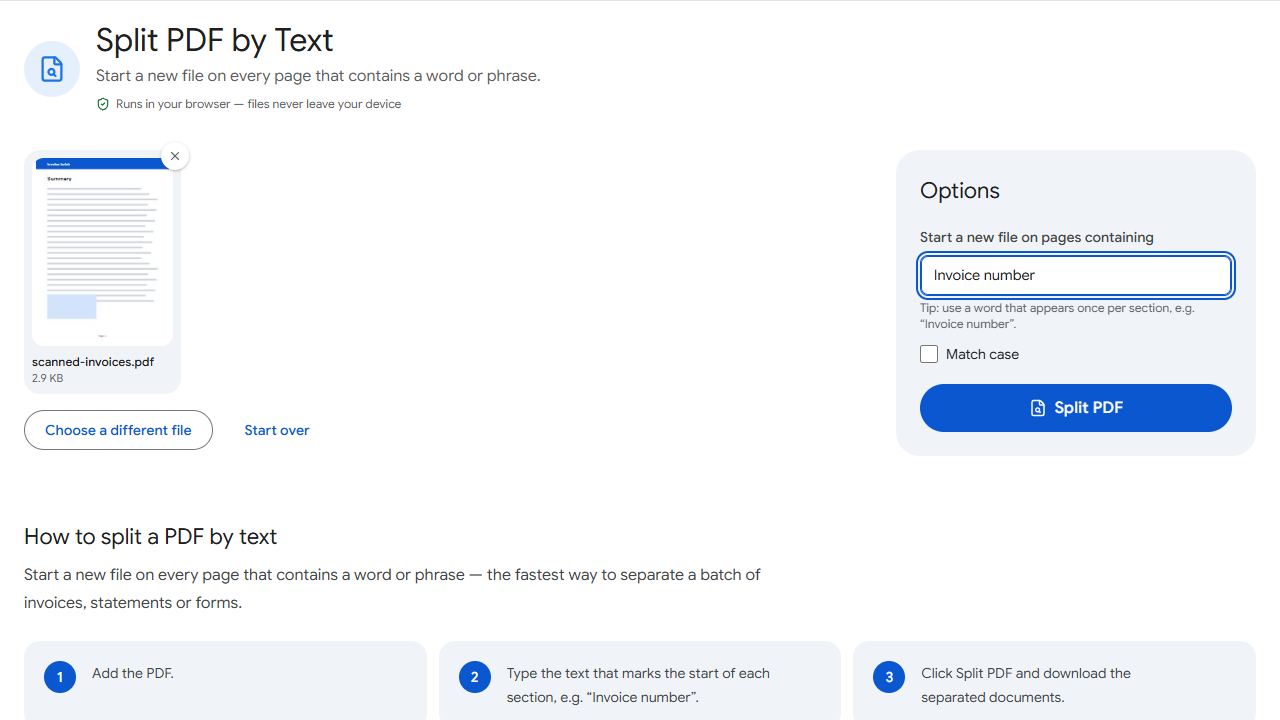
How splitting by text works
You give the tool a word or phrase that appears once at the start of every document — for example "Invoice number", "Statement date" or "Page 1 of". Every page that contains it starts a new file; the pages in between belong to the file before.
Step by step
- If the PDF came from a scanner, first run OCR PDF so the pages contain real text.
- Open Split by Text and add the PDF.
- Type the phrase that marks the start of each document.
- Click Split PDF and download the separate files as a ZIP.
Choosing a good phrase
- Unique to page one: "Invoice number" usually appears only on the first page; a company name may appear on every page and would split too often.
- Short and exact: OCR can misread long phrases. Two or three words are more reliable.
- Case: matching ignores upper and lower case unless you turn on the case-sensitive option.
- Test it: try the phrase on a small batch first and check the number of files is what you expect.
When page counts are fixed
If every document has the same length — say, two-page forms — you don't need text at all. Use Split PDF with every N pages set to 2.
Common problems and fixes
- Nothing is split.
- The phrase wasn't found. The PDF is probably a scan without text — run OCR PDF first — or the phrase is spelled differently in the document.
- Every page becomes its own file.
- The phrase appears on every page (like a company name or header). Choose one that only appears on the first page of each document.
- Some invoices are merged together.
- OCR may have misread the phrase on those pages. Try a shorter phrase, or run OCR at the higher accuracy setting.
Frequently asked questions
Files are numbered in order. Rename them afterwards if you need invoice numbers in the names.
No. Any page containing the phrase anywhere starts a new file.
No. Splitting — and OCR, if you use it — runs in your browser on your own device.