Why Won't a PDF Open in WhatsApp? Causes and Fixes
By Bishal Neupane · · 5 min read
A PDF in a chat behaves a little differently from a PDF on your desktop. The file is downloaded into the chat first, then handed to another app to display, and on the sending side it has to survive an upload. This guide covers what is specific to WhatsApp, on both ends. For the general causes that apply to any PDF, such as passwords, damaged files and missing viewers, start with why a PDF won't open.
Receiving or sending: work out which side has the problem
Ask one question first: does the file open on the sender's phone? If it does, the trouble is in the transfer or on your phone. If it fails for the sender too, the file itself is the problem and no chat setting will fix it. Ask them to re-save or re-export the PDF from the program that made it, then send the new copy.
The same split helps when you are the sender. Open the final file on your own phone before you send it. If it opens for you, a failure at the other end is more likely a connection or viewer issue on their side.
A preview is not the same as a download
In a chat, a PDF can appear as a bubble with a name and size before the file is on your phone. Seeing the bubble does not mean you have the document. Tap it to download, wait for the download to finish, and only then open it. A file that stops partway on a weak connection is one of the most common reasons it will not open, so retry the download on a steadier connection, such as Wi-Fi.
Some chats show a thumbnail of the first page and others show only an icon. Do not read anything into that: the preview style depends on the app version and the phone, and a missing thumbnail does not mean the file is broken.
Open the received PDF outside the chat
- Tap the PDF so it downloads, then use the share or open-with option to send it to your browser or another PDF viewer.
- If that works, the chat's built-in handling was the problem and you can keep using the other app for this file.
- Save a copy to your phone's storage so it no longer depends on the chat. Our guide to where downloaded PDFs are saved on iPhone and Android shows how to find and move it.
- If no app opens it, ask the sender to send it again or by email, then work through the generic checklist in why a PDF won't open.
Send a PDF so it arrives and opens
Most failures on the sending side come down to size, to sending several files where one would do, or to sending the wrong kind of file. A few habits prevent most of them.
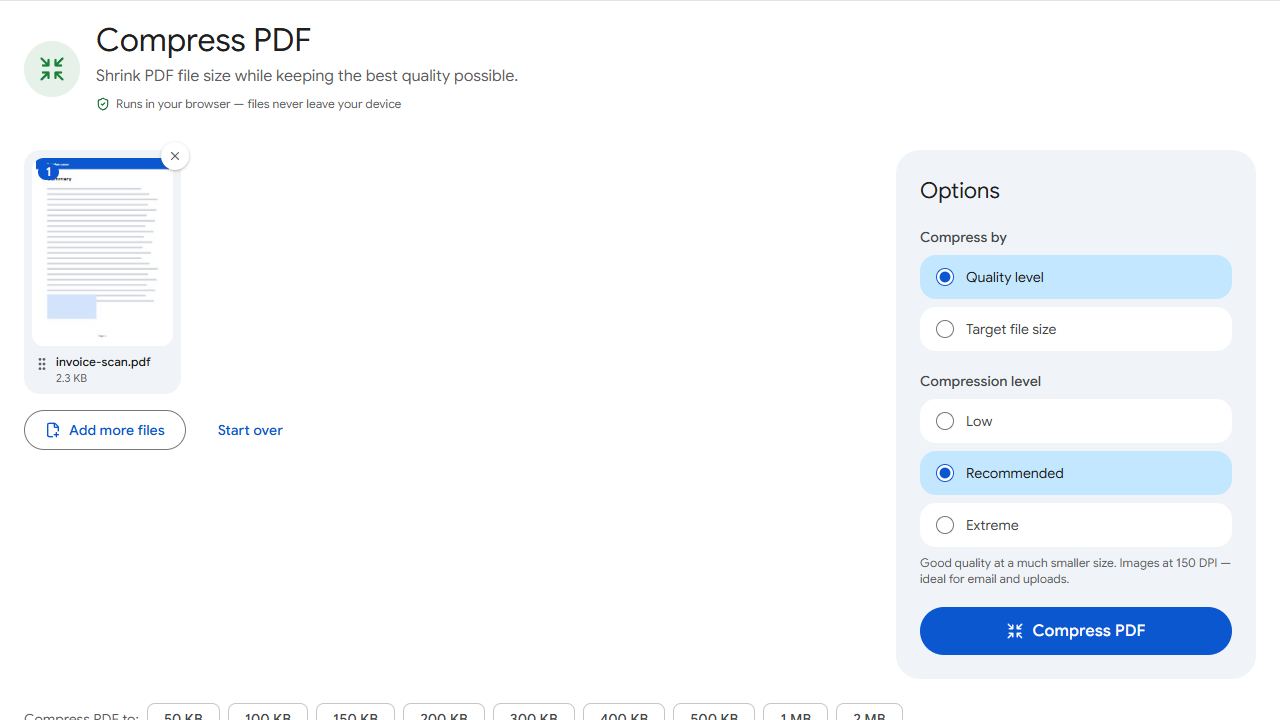
- Check the size first. Look at the file size in your files app. If the PDF is large, shrink it with Compress PDF and check the new size before sending. Smaller files upload faster and are more likely to download on a poor connection. The compression guide explains the levels.
- Send one file, not five. Join related documents with Merge PDF so the receiver gets a single file and a single message.
- Send it as a document. Use the document or file option when attaching, not the photo gallery option. Menu wording varies by version, so look for the one that lists files rather than pictures.
- Password only if the receiver knows it. Protect PDF adds an open password, which is sensible for ID copies or payslips. Send the password by a different route, not in the same chat as the file.
- Turn photos into one PDF. If you photographed pages, combine them into a single PDF before sending instead of a stack of images.
When it opens for some people but not others
If one person cannot open a file that others can, the difference is on their phone: an outdated app, little free storage or a weak connection. Ask them to update their apps, free some space and download the file again on Wi-Fi. If you forward the same file to several people, send the exact original rather than a screenshot or a re-saved copy.
Common problems and fixes
- I see the PDF in the chat but it won't open.
- The bubble can appear before the file is on your phone. Tap it, wait for the download to finish, and retry on Wi-Fi if it stalls. Then open it with your browser or another viewer through the share option.
- The PDF I sent shows as failed or never arrives.
- Check the file size, compress the PDF if it is large, and send it again on a stronger connection. Open the final copy on your own phone first to be sure the file itself is fine.
- I sent several PDFs and the receiver is confused.
- Join them with Merge PDF so one file goes out in one message, in the order you choose.
- The receiver can't open my protected PDF.
- Make sure they have the password and that you sent it by another route. If they never received it, send it separately rather than in the same chat.
Frequently asked questions
No, the quality does not change. A PDF sent as a document goes out as the same file you attached, so text, images and layout stay exactly as they were. Sending pages as photos is a different thing, so combine them into one PDF first if you want a real document.
A link is a good fallback when a file is large or keeps failing. Compressing the PDF first often makes sending the file itself practical.
Yes, it is an ordinary PDF file. Make sure the receiver knows the password and send it separately, not in the same chat.
It reduces file size and may lower image quality slightly. Check the result on your phone before sending, and keep the original.