ImmiAccount Attach Documents: How to Compress a PDF Under 5 MB
By Bishal Neupane · · 6 min read
When you apply for an Australian visa or citizenship online, the supporting documents go into ImmiAccount on the Attach documents page. The Department of Home Affairs sets three limits there: a maximum size for each file, a maximum number of files for each person, and a ban on encrypted PDFs. Colour scans of passports, payslips and bank statements often break the first limit, and partner or skilled visa applications can run into the second. Here are the rules as Home Affairs publishes them, and how to prepare files that attach the first time.
ImmiAccount file size and format rules
The rules are on the Home Affairs page Attach documents to your application, under Document size and format:
- Documents: up to 5 MB each.
- Digital photographs: between 70 KB and 3.5 MB each. The facial image for a visa application must be a jpg file.
- Accepted formats include .pdf, .jpg, .png, .doc and .docx, along with .bmp, .dcm, .dot, .gif, .ppt, .pptx, .txt, .xls and .xlsx. The page lists .jpg, so save photos with that extension.
- Encrypted or secured PDF files are not accepted.
- Clear photos of documents are accepted, as long as the photo shows all the information on the document.
The department's separate web form for attaching additional documents also states a 5 MB upload limit. Home Affairs does not publish rules for file names on these pages, so keep names short and plain, such as passport-bio-page.pdf, and follow any message the upload screen shows.
The 60 document limit, and why merging matters
The same page sets a limit on the number of files: "You can attach up to 60 documents for each person on most visa and citizenship applications. For partner visa applications, you can attach up to 100 documents for each person." Once every applicant has reached the limit, nothing more can be attached in ImmiAccount.
Sixty goes quickly if every payslip and every bank statement is a separate file. Combine related documents instead:
- Group documents of the same type, for example twelve months of statements for one bank account.
- Open Merge PDF, add them in date order and download one combined PDF.
- If the combined file is over 5 MB, compress it as described in the next section.
You cannot remove a document after you submit the application, and ImmiAccount does not let you open your attachments again after uploading. Check each file before you attach it and keep your own copies.
Compress a PDF under 5 MB for ImmiAccount
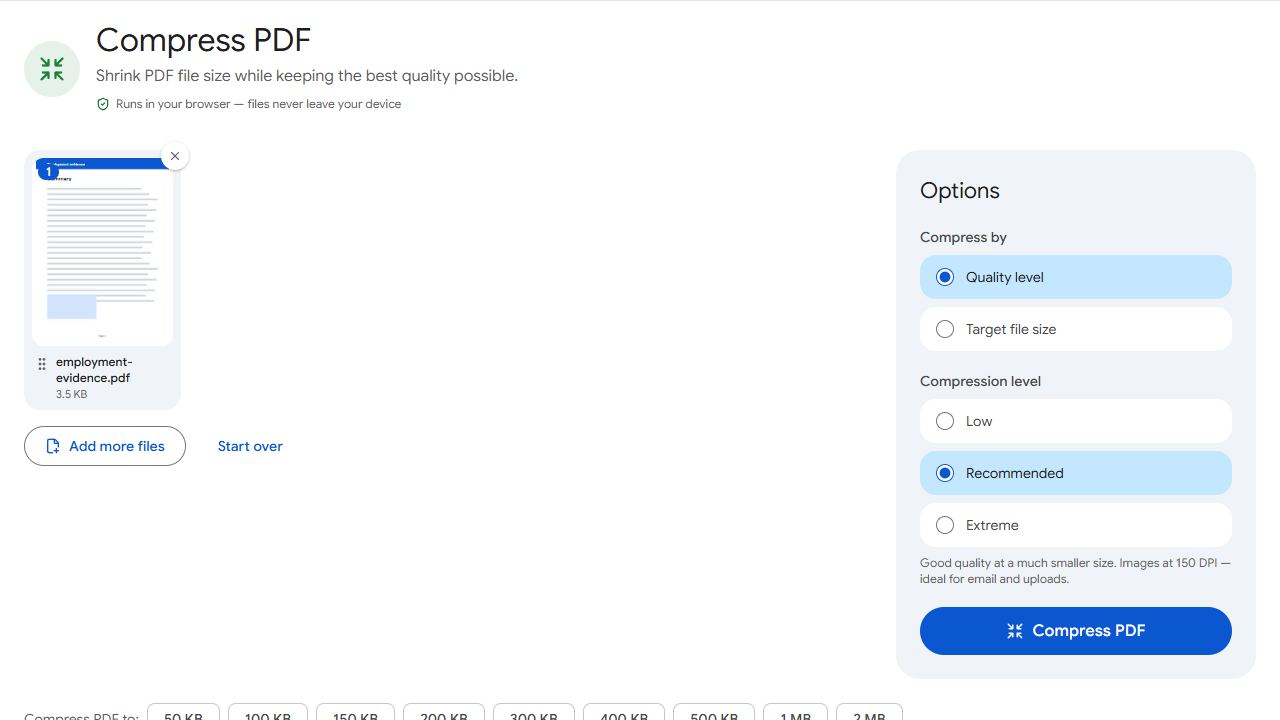
- Open Compress PDF and add the file.
- Choose Target file size and type 5000 KB, or a slightly lower number such as 4900 KB if you want a margin.
- Click Compress PDF. The result reports the final size, so you can see that it fits before you return to ImmiAccount.
- Download the file. In ImmiAccount, choose the applicant, the reason and the document type, then select Browse, pick the file and select Attach. A green tick shows the upload worked.
The compressor re-encodes the images in the PDF, lowering quality first and resolution only if it has to, and leaves real text sharp. It counts 1 KB as 1,000 bytes, so 5000 KB is 5,000,000 bytes, which fits whether the portal counts a megabyte as 1,000 or 1,024 kilobytes. Everything runs in your browser. Your passport, payslips and bank statements are not uploaded to PDFCraftly.
If a file is still hard to read at 5 MB, for example a long statement scanned in colour, cut it into parts with Split by Size and set the limit to 5 MB. ImmiAccount lets you attach a group of documents of the same type, but each part counts towards the document limit, so compress first and split only when you must. For more on the quality levels, see how to compress a PDF.
Fix a PDF that ImmiAccount will not accept
Home Affairs notes that the encryption problem "often occurs with documents downloaded directly from the website", such as bank statements and some official forms. Its common issues page gives the order to check: size, file type, encryption, then try a different format or a different browser.
- Password-protected PDF: if you know the password, Unlock PDF removes it and saves an ordinary copy you can attach.
- Secured PDF with no password you know: follow the department's own advice, which is to print the document, scan the printout and upload the new copy. Scan to PDF does the scan with your phone camera.
- Unsupported format: convert photos to a PDF with JPG to PDF.
- A link instead of a file: the department cannot accept links to files on Google Drive or OneDrive. Download the file and attach it.
Before you select Attach
- Each document is 5 MB or less; each photograph is between 70 KB and 3.5 MB.
- PDFs open without a password.
- Related documents are merged, so you stay well under 60 files for each person (100 for partner visas).
- Pages are upright and in order. Fix them with Rotate PDF or Organise PDF.
- Every page is readable when you zoom in on the smallest print.
- You have kept a copy of every file on your own device.
ImmiAccount keeps attachments on an unsubmitted application for 30 days. If you do not submit in that time, the documents are deleted and you have to attach them again, so keep the compressed files until the application is lodged.
Common problems and fixes
- ImmiAccount shows an error when I attach a PDF.
- Home Affairs says to check the size limit, then the file type, then whether the PDF is encrypted. Compress to under 5 MB with Compress PDF, and if the file has a password you know, remove it with Unlock PDF. If it still fails, try a different browser.
- My bank statement PDF is rejected although it is small.
- PDFs downloaded from a website are often encrypted or secured, and ImmiAccount does not accept those. Unlock it if you know the password; otherwise print it, scan the printout with Scan to PDF and attach the scan, as the department advises.
- I have reached the document limit.
- The limit is 60 documents for each person on most applications and 100 for partner visas. Before you get there, merge related files with Merge PDF. If you have already reached it, you can attach to another applicant on the same application or use the department's form for your visa subclass, listed on its Attach documents page.
- The merged file is far over 5 MB.
- Type 5000 KB under Target file size in Compress PDF. If the pages become hard to read, cut the file into parts under 5 MB with Split by Size and attach the parts under the same document type.
- My photo is rejected.
- Photographs must be between 70 KB and 3.5 MB, and the facial image must be a jpg. If the file is too large, reduce it with Compress JPG and check the result is still above 70 KB.
Frequently asked questions
The Department of Home Affairs states that documents can be up to 5 MB each and digital photographs should be between 70 KB and 3.5 MB each.
Up to 60 documents for each person on most visa and citizenship applications, and up to 100 for each person on partner visa applications, according to Home Affairs.
No. The department states that ImmiAccount does not accept encrypted or secured PDF files. Remove a known password with Unlock PDF, or print and rescan the document.
The published list includes .pdf, .jpg, .png, .doc and .docx, plus .bmp, .dcm, .dot, .gif, .ppt, .pptx, .txt, .xls and .xlsx. PDF is the practical choice for anything with more than one page.
No. You can remove documents only before you submit. If you attach the wrong file to a submitted application, Home Affairs asks you to complete a Notification of incorrect answers form and attach the correct document.
No. Compression, merging and unlocking run in your browser on your own device. Nothing is sent to a server.