How to Password Protect a PDF on iPhone or iPad
By Bishal Neupane · · 4 min read
You have a payslip, a lease or a scan of your ID on your phone, and you need to send it without leaving it readable in someone's inbox. You can password protect a PDF on iPhone straight from Safari: no app, no account, and the file is encrypted on the phone itself.
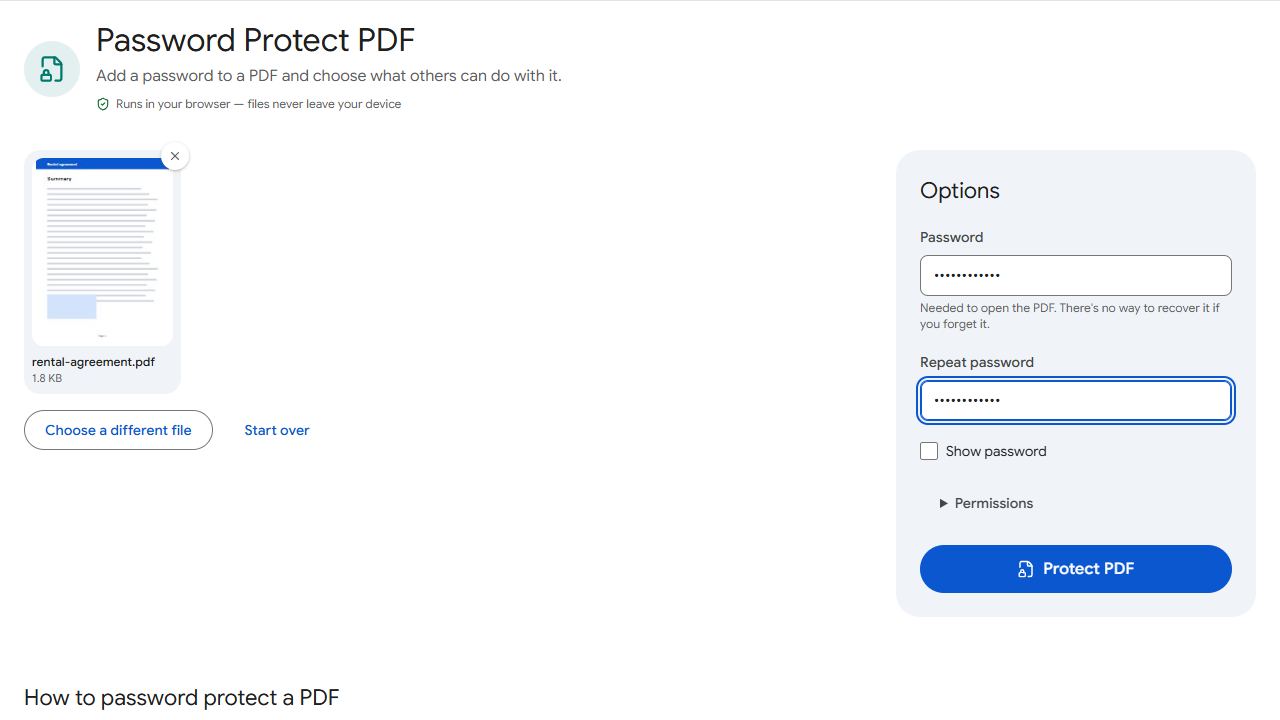
Lock the PDF in Safari
- Open Protect PDF in Safari. Chrome and other iPhone browsers work the same way.
- Tap the upload area and choose the PDF. The picker shows the Files app, so you can pick from iCloud Drive, On My iPhone or any storage you have connected.
- Type a password, then type it again. Tap Show password if you want to check what you typed.
- Tap Protect PDF, then download the result.
The new file is called after the original with _protected added, for example lease_protected.pdf. Your original is not changed. The PDF is encrypted with AES-256 inside your browser, and neither the file nor the password is sent anywhere.
Find the protected file in the Files app
Safari normally saves downloads to the Downloads folder in the Files app. Open Files, tap Browse, then Downloads. If you changed Safari's download location, look there instead.
The Downloads button in Safari's address bar also lists recent downloads. Tap the file there to open it and check that it asks for the password.
Delete or move the unprotected original if it was in a place you don't want it to stay, such as a shared folder. The protected copy is a separate file.
Send it by Messages, Mail or AirDrop
In the Files app, press and hold the protected PDF and tap Share, or select it and use the share button. Choose Messages, Mail, WhatsApp or AirDrop from the sheet. The person receiving it sees a PDF that asks for a password before it shows a single page.
Don't put the password in the same message as the file. Send the PDF by email and the password by text, or read it out on a call. Anyone who can see the whole conversation would otherwise have both.
Opening a protected PDF on iPhone
Tap the file in Files or in an email attachment and a password prompt appears. Type the password and the PDF opens in the normal viewer. If you want to stop typing the password for a file you trust, Unlock PDF saves an unprotected copy, as long as you know the password.
For the full picture of open passwords versus permissions, see the general guide on how to password protect a PDF. If the tool refuses a file because it already has a password, or you want to limit printing and copying, read how to protect a PDF from editing and copying.
Combine several documents before you lock them
If you are sending a bundle, such as a payslip plus a bank statement, join them first with Merge PDF and protect the single result. One file with one password is easier for the recipient than three files that each need one.
Using an Android phone or a Mac instead? See how to password protect a PDF on Android or on a Mac.
Common problems and fixes
- The picker doesn't show my PDF, which arrived in WhatsApp or Mail.
- Attachments are not in the Files app until you save them. Open the PDF in the app that received it, tap Share and choose Save to Files, then pick it from there.
- I can't tell whether the file is in iCloud Drive or on the phone.
- In Files, check the location you saved it to. iCloud Drive is shared across your Apple devices, while On My iPhone stays on this phone. Safari's Downloads folder follows the location set in Safari's settings.
- The two passwords don't match.
- Tap Show password to see what you typed. Autocorrect and capital letters at the start of a field are the usual causes.
- The tool refuses my file.
- If the PDF already has a password, see how to protect a PDF from editing and copying for the fix.
Frequently asked questions
They need a PDF viewer that supports passwords, which includes the viewers built into phones and browsers. They will be asked for the password when they open the file.
Yes. The steps are the same in Safari on an iPad, and the file ends up in the Downloads folder in the Files app.
Only if you want it on your other Apple devices. Saving it to On My iPhone keeps it on this phone. Either way the file stays encrypted.