How to Repair a Corrupted PDF (and When It Can't Be Fixed)
By Bishal Neupane · · 5 min read
You double-click a PDF and get "the file is damaged", a blank window or a viewer that hangs. Before you assume the document is gone, work out what kind of problem it is. Damage to the file's structure can often be repaired. A missing password or a huge file size cannot be fixed by repairing, and a half-downloaded file cannot be repaired into a complete one. If you are not sure the file is damaged at all, start with why a PDF won't open, and for files that fail inside a chat app see PDFs that won't open in WhatsApp.
Is the PDF damaged, locked or just heavy?
Three different problems look alike from the outside, and each has a different fix.
- Damaged: the viewer says the file is corrupt, can't be read or has no pages, or it opens but shows blank or missing pages. This is the case repair is for.
- Locked: the viewer asks for a password before it shows anything. Nothing is wrong with the file. Remove the password with Unlock PDF if you know it.
- Too heavy: the file opens, but slowly, or an email or upload form rejects it. Shrink it with Compress PDF instead.
Try the same file in a second viewer, such as your browser and a desktop reader. If one of them opens it normally, the file is fine and the first viewer is the problem.
Why PDFs get corrupted
A PDF ends with an index, called the cross-reference table, that tells a viewer where every page and image sits in the file. If that index is cut off or points to the wrong places, viewers stop reading even though the pages themselves are still inside the file.
The usual causes are an interrupted download or email transfer, a file copied from a failing USB drive or memory card, a program that crashed while saving, and an upload that stopped halfway. In those cases the ending of the file is often the part that is missing.
What repair can and can't do
Repair rebuilds the file's structure. It looks for the objects that are still readable in the file, builds a new index and saves a clean copy. When only the index was damaged, the result usually has all of its pages.
- It can help when the end of the file is cut off, the index is wrong, or a viewer rejects the file for structural reasons.
- It can't restore pages or images that were never fully saved. If the file stopped downloading halfway, the missing half is gone and a repaired copy will have fewer pages.
- It doesn't remove passwords, and it can't repair a file that is not a PDF at all.
- Some files can't be rebuilt, for example when the document's main catalog sits in a compressed section that is itself damaged.
Because success depends on what is damaged, the tool tells you plainly when it had to rebuild the file and when it couldn't repair it. Always check the result before you delete the original.
Repair a PDF step by step
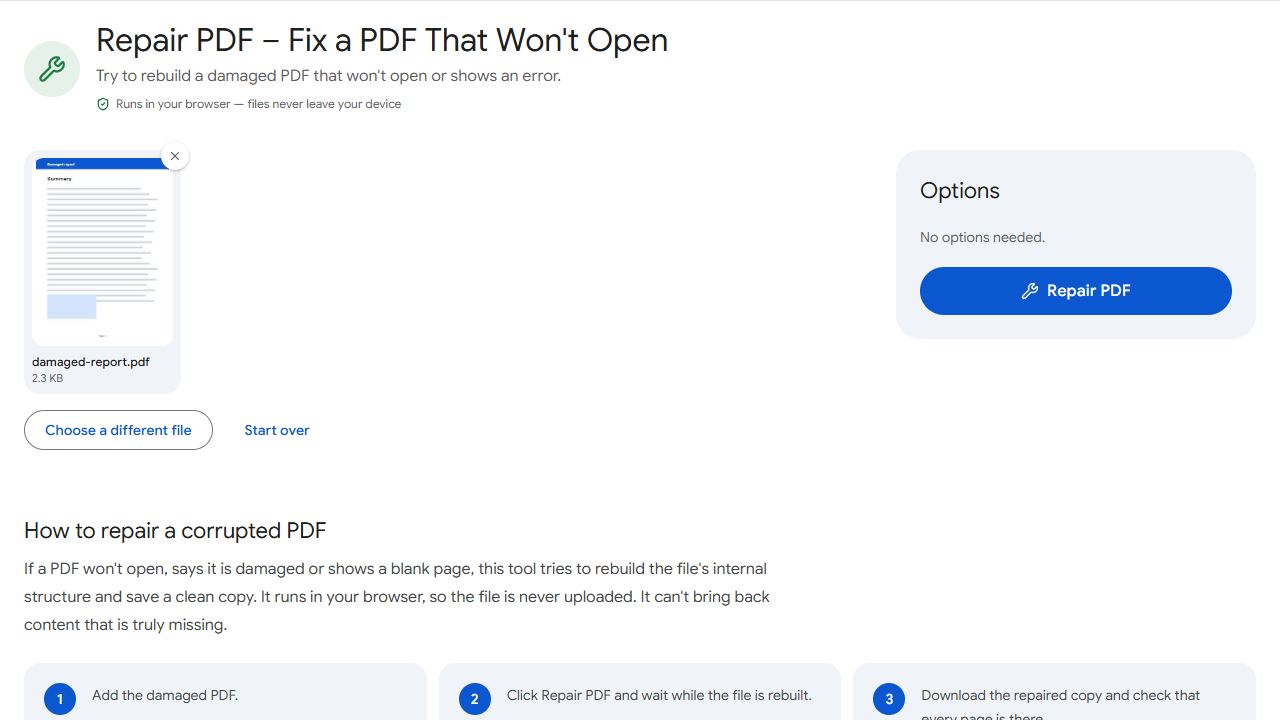
- Open Repair PDF and add the damaged file.
- Click Repair PDF. The work happens in your browser, so the file isn't uploaded.
- Download the copy called yourfile_repaired.pdf.
- Open it and scroll through every page. Compare the page count with what you expected before you throw anything away.
If the tool says the file was rebuilt, treat the message as a prompt to check it. If it says no damage was found, the PDF structure was already fine and the problem is probably in the viewer or on the device you opened it on.
Keep the original file until you've checked the repaired copy. The repair never changes the original.
If repair doesn't work
Some files can't be saved by any tool, so go back to the source before you give up.
- Download or receive it again. An interrupted transfer is the most common cause, and a fresh copy is usually complete.
- Export it again from the original program. If you made the PDF in Word, a design app or a scanner, create a new PDF from the original document.
- Try a different viewer. A browser, a phone and a desktop reader are strict in different ways.
- Ask for the file in another way. A shared link or a zipped copy avoids email attachment problems.
- Check for a password. If the viewer asks for one, use Unlock PDF, then repair the unlocked copy if it still won't open.
- Shrink an oversized file. If it's the size that fails, see how to compress a PDF.
Common problems and fixes
- The tool says the PDF couldn't be repaired.
- The file may be too damaged, or it may not be a PDF at all. Download or export it again from the source, and try opening it in another viewer in case it is fine.
- The repaired PDF has fewer pages than the original should.
- The missing pages were not fully saved in the damaged file, and repair can't restore them. Get a complete copy from the source, such as a fresh download.
- The tool says the PDF is password-protected.
- Remove the password with Unlock PDF first (you'll need to know it), then repair the unlocked copy.
- The tool says no damage was found, but the PDF still won't open for me.
- The file's structure is fine, so the problem is likely the viewer or the device. Update the viewer, or open the file in a browser or another PDF app.
- The file opens, but it's too large to send.
- That's a size problem, not damage. Shrink it with Compress PDF instead.
Frequently asked questions
No. Repair works when the file's structure is damaged but the content is still inside it. Content that was never saved or downloaded can't be restored, and a badly damaged file may not be repairable at all.
No. Repair PDF runs in your browser, on your device, so the file is not sent to a server.
No. You get a new file called yourfile_repaired.pdf, and the original stays as it was.
No. Repair doesn't remove passwords. If a PDF needs one, use Unlock PDF first, as long as you know the password.
Email transfers and cloud downloads sometimes stop early, which cuts off the end of the file, where the page index lives. Downloading it again is the quickest fix, and repair is the next thing to try.