How to Scan Your Citizenship Certificate (Nagarikta) to PDF
By Bishal Neupane · · 2 min read
Banks, embassies, universities and online forms regularly ask for a copy of your citizenship certificate (नागरिकता प्रमाणपत्र), usually both sides in one file. Here's how to make a clean, readable PDF with just your phone.
Before you start
- Lay the certificate flat on a dark, plain surface so its edges stand out.
- Use daylight near a window. Avoid the flash: laminated certificates reflect it and hide text.
- Take it out of any plastic sleeve if you can.
- Make sure the photo, citizenship number, seals and signatures are all fully in frame.
Scan both sides into one PDF
- Open Scan to PDF on your phone and tap Start camera (allow camera access).
- Set Scan mode to Color. Document mode boosts contrast, which is great for text but can wash out your photo.
- Capture the front, turn the certificate over and capture the back.
- Under Page layout, choose A4, then tap Create PDF and download.
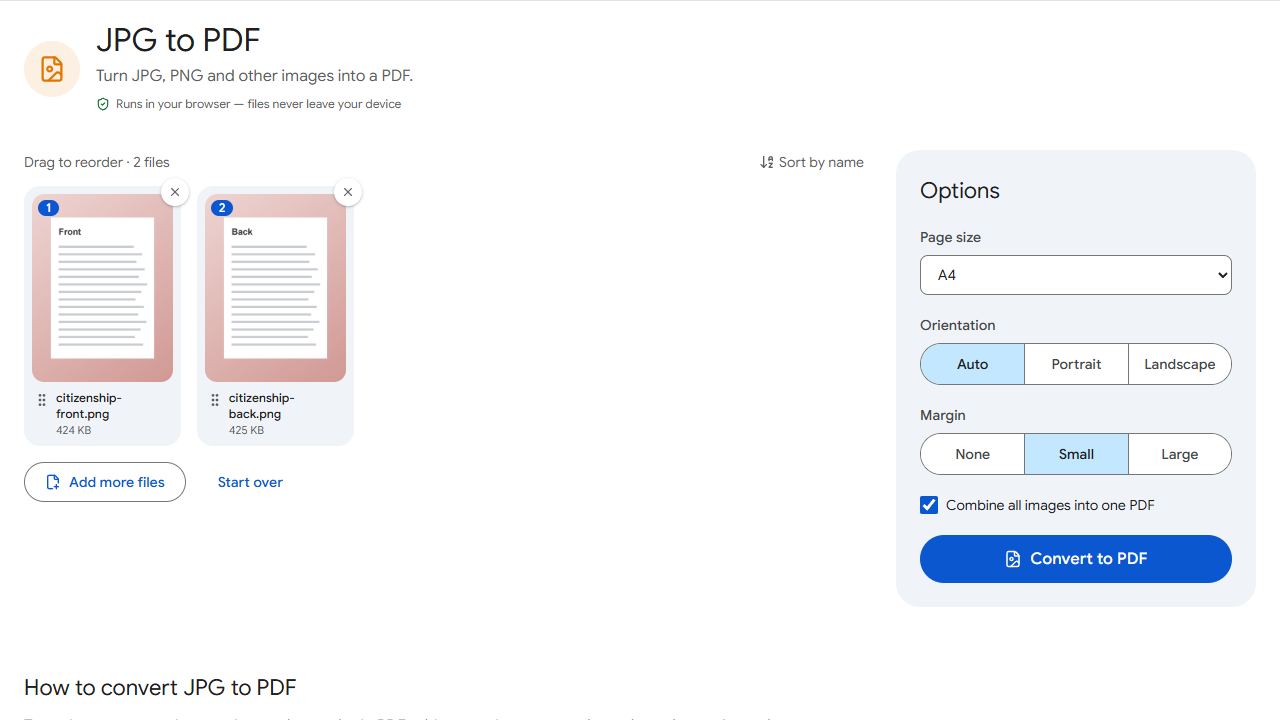
Already have photos of it? Add both photos to JPG to PDF instead, choose A4 and a small margin, and convert.
Name it and check the size
Name the file clearly, for example firstname-lastname-citizenship.pdf, using English letters and no spaces — some portals reject other file names.
Online forms have strict limits: Nepal's passport application, for example, asks for scanned documents of 300 KB or less. Use Compress PDF to 300 KB, or set any target file size in Compress PDF, and it finds the sharpest version that fits. See fitting Nepal's online form limits for more.
Protect your copy
A citizenship scan is enough to impersonate you, so avoid websites that upload it to their servers — every tool here works on your phone. When you send a copy to a bank, SIM shop or agent, consider stamping it with its purpose using Watermark, for example "For ABC Bank account opening only", without covering your photo or number.
Don't watermark copies going to an embassy or government office unless they allow it. They usually want clean copies.
Common problems and fixes
- There's a white glare over the text.
- The lamination is reflecting light. Turn off the flash, move away from overhead lights and tilt the phone slightly until the glare disappears.
- The scan is blurry.
- Hold the phone steady, tap the screen to focus if your phone supports it, and move back a little — phones often can't focus very close.
- The portal only accepts JPG.
- Convert the PDF with PDF to JPG; each side becomes its own image.
- The edges or background are showing.
- Trim the extra space with Crop PDF, keeping every edge of the certificate visible.
Frequently asked questions
For online forms it usually is, as long as it's sharp, complete and readable. Offices may still ask to see the original in person.
Yes, unless you're told otherwise. Colour shows the photo, seals and stamps clearly.
Yes. Scanning and converting happen on your phone; nothing is uploaded.
For banks, SIM registration or agents, a purpose watermark reduces misuse. Keep it away from your photo and number, and don't watermark copies for embassies unless they allow it.