Nigerian Passport Photo Upload: 600 × 800 px, Under 2 MB, White Background
By Bishal Neupane · · 6 min read
Applying for a Nigerian passport starts online at passport.immigration.gov.ng, and the first thing that stops many applicants is the photo upload. The Nigeria Immigration Service (NIS) portal states exact rules: 600 × 800 pixels, under 2 MB, white background. Here is what those rules mean, how to get a phone photo to meet them, and how to prepare the supporting documents you upload afterwards.
What the NIS passport portal asks for
The portal publishes its photo rules on its own image compliance page. As of November 2026 it lists:
- Image size should be less than 2 MB.
- Image resolution should be 600 × 800 px, which is a portrait photo with a 3:4 shape.
- Must have a white background.
- Hair should not cover the face or ears.
- No headphones, masks or similar items.
- Proper lighting: neither too dark nor too bright.
- Children under five get the usual ICAO relaxation, but the child must look at the camera with the face centred.
The same page has a Test Photo Upload box with a Check Image button, so you can test a photo before you start the application. NIS's step-by-step application guide calls this "upload your ICAO compliant picture" (step 5) and then "upload supporting documents" (step 8). You still attend the passport office for biometrics; the uploaded photo is what goes on the application.
Take a photo that will pass
Most rejections come from the photo itself, not the file. Get these right before you touch any tool:
- Stand about half a metre in front of a plain white wall, facing a window or bright light so the wall has no shadow behind you.
- Ask someone to hold the phone at your eye level, about 1.5 metres away, without zooming.
- Keep your head straight, look at the camera and keep a neutral expression with your mouth closed.
- Tuck hair behind your ears and take off caps, glasses, headphones and anything else on your head or face.
- Wear a colour other than white, so your clothes don't merge into the background.
PDFCraftly does not change background colour or retouch photos. If your only wall is coloured or patterned, retake the photo or ask a passport photo studio for a digital copy on a white background.
Crop to 600 × 800 pixels
Phone cameras produce photos of about 3000 × 4000 pixels, far more than the portal's 600 × 800. Crop in your phone's Photos or Gallery app: choose a 3:4 (portrait) crop shape, keep your head and the top of your shoulders in the frame, and leave a little space above your hair. Some gallery apps, Samsung Gallery for example, can also resize the picture when you save or share it; set 600 × 800 if you see that option.
PDFCraftly's tools do not resize images to exact pixel dimensions. What they do tell you is the size you have: after compressing, Compress JPG reports the final pixel dimensions next to the file size, so you can see whether your crop came out at 600 × 800. If you can't get exact dimensions from your gallery app, run the photo through the portal's Check Image box, or have a studio supply a 600 × 800 copy.
Get the file under 2 MB
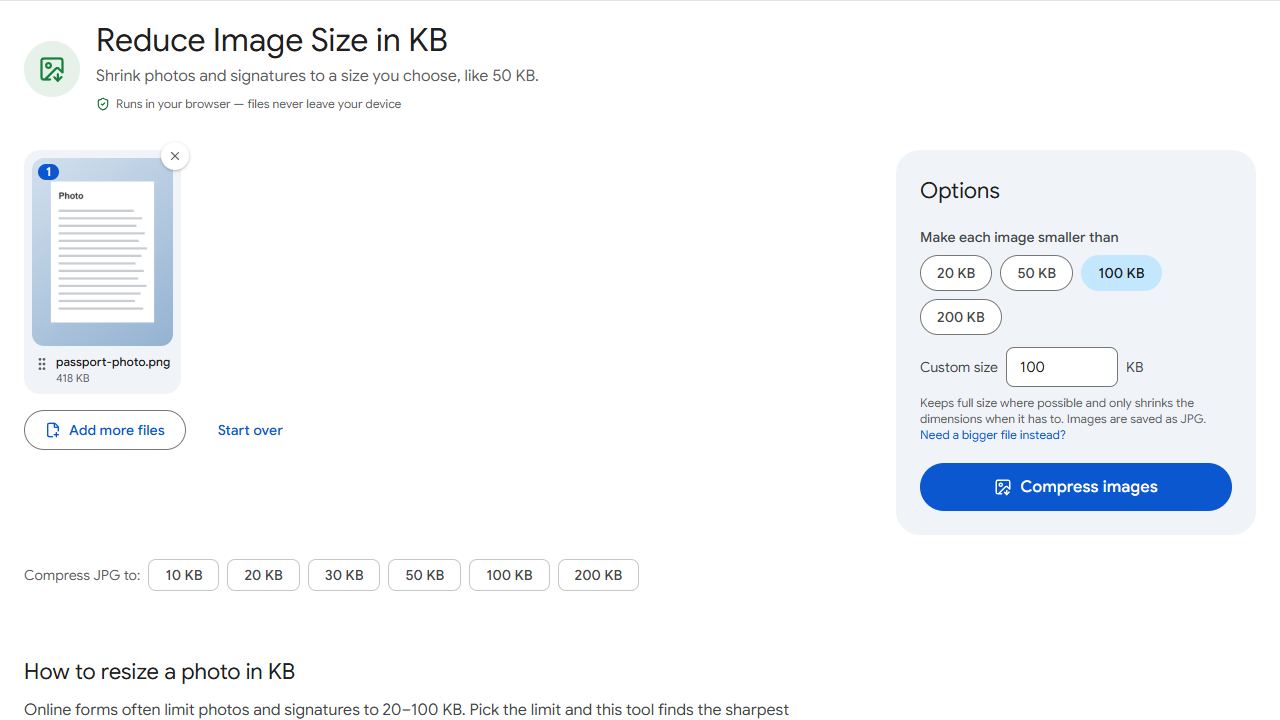
- Open Compress JPG and add the cropped photo (JPG or PNG).
- Choose Target file size and type 1500 KB. That leaves a comfortable margin under the portal's 2 MB limit.
- Click Compress images. The result shows the final size and the pixel dimensions.
- Download the JPG and upload it on the passport portal.
The compressor lowers JPEG quality first and only reduces dimensions when quality alone can't reach the target. A 600 × 800 photo is far below 2 MB at any quality, so your dimensions won't change; the tool simply gives you a clean JPG of a known size. The portal's instructions page doesn't list accepted formats, and JPG is the standard choice for passport photos.
Everything runs in your browser. The photo isn't uploaded to PDFCraftly, which matters if you're doing this on a shared computer at a cyber café.
Supporting documents on the passport portal
After the photo, the application asks you to upload supporting documents. Which ones depends on your application type, and the NIS guide pages we checked do not publish a file-size limit for them, so check the limit stated on the upload form when you reach that step.
- Scan each document with Scan to PDF on your phone, in daylight, one document per file.
- If the portal rejects a scan as too large, open Compress PDF, choose Target file size and type the limit shown on the form, for example 500 KB.
- If a scan has pages the form doesn't need, pull out only the required ones with Extract Pages before compressing.
For more on getting a PDF under a specific limit, see how to compress a PDF.
Results are checked against 1 KB = 1,000 bytes, so a file that fits here also fits a portal that counts 1 KB as 1,024 bytes.
Common problems and fixes
- The portal says the image resolution is wrong.
- It expects 600 × 800 pixels, portrait. Crop again at a 3:4 shape in your gallery app and use its resize option if it has one. Compress JPG shows the dimensions of the file you have, and the portal's own Check Image box on the image compliance page tells you whether it passes. A photo studio can also supply a 600 × 800 digital copy.
- My photo is under 2 MB but it's still rejected.
- Size is rarely the problem at 2 MB. Look at the photo itself: a grey or shadowed wall instead of white, hair over the ears, glasses, a cap or headphones, or a face that is too dark or washed out. Retake it in front of a white wall in daylight.
- The photo looks blurry after compressing.
- At a 1500 KB target there should be no visible quality loss, so the blur was in the original. Retake it without zooming, in good light, and hold the phone steady at eye level.
- The portal rejects my scanned document for size.
- Check the limit stated on the upload form, then open Compress PDF, choose Target file size and type that number. Keep one document per file and remove pages the form doesn't ask for.
Frequently asked questions
The NIS passport portal's image compliance page asks for 600 × 800 pixels, under 2 MB, on a white background, with hair not covering the face or ears and no headphones or masks.
Yes, if it meets the rules: white background, good light, head straight, ears visible. Have someone else take it at eye level, crop it to 3:4, and test it in the portal's Check Image box.
No. Compress JPG reduces the file size and reports the final pixel dimensions, but it doesn't resize to exact dimensions or change backgrounds. Crop in your phone's gallery app and retake the photo if the background isn't white.
No. Compression runs in your browser, so the photo stays on your device.
The portal doesn't say, so don't go near the edge. A 1500 KB target is well under either reading, and a 600 × 800 photo is normally far smaller than that anyway.